Dashboards
Dashboards visualize your metrics as tabs of chart widgets. A dashboard belongs to your organization, not to a single project: you build it once and apply it to any number of projects, and edits show up everywhere it is applied. Every dashboard is a plain JSON document underneath, so you can edit, export, import, and version-control them as code.
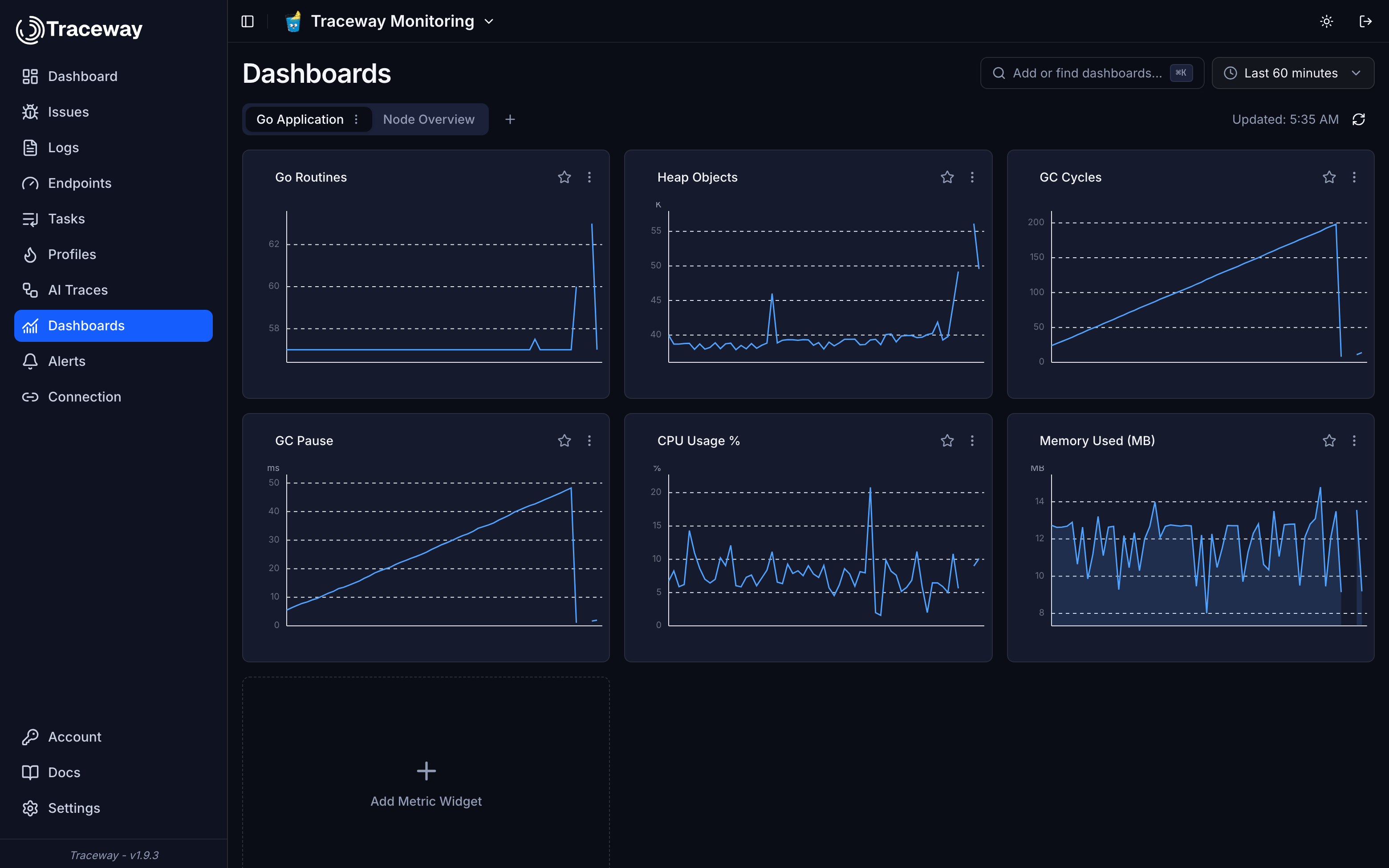
The Dashboards page
Each tab on the Dashboards page is one dashboard applied to the current project. A project with no dashboards yet shows a single Browse Dashboards & Templates button that opens the command palette described below. The active tab's menu holds everything you can do with a dashboard:
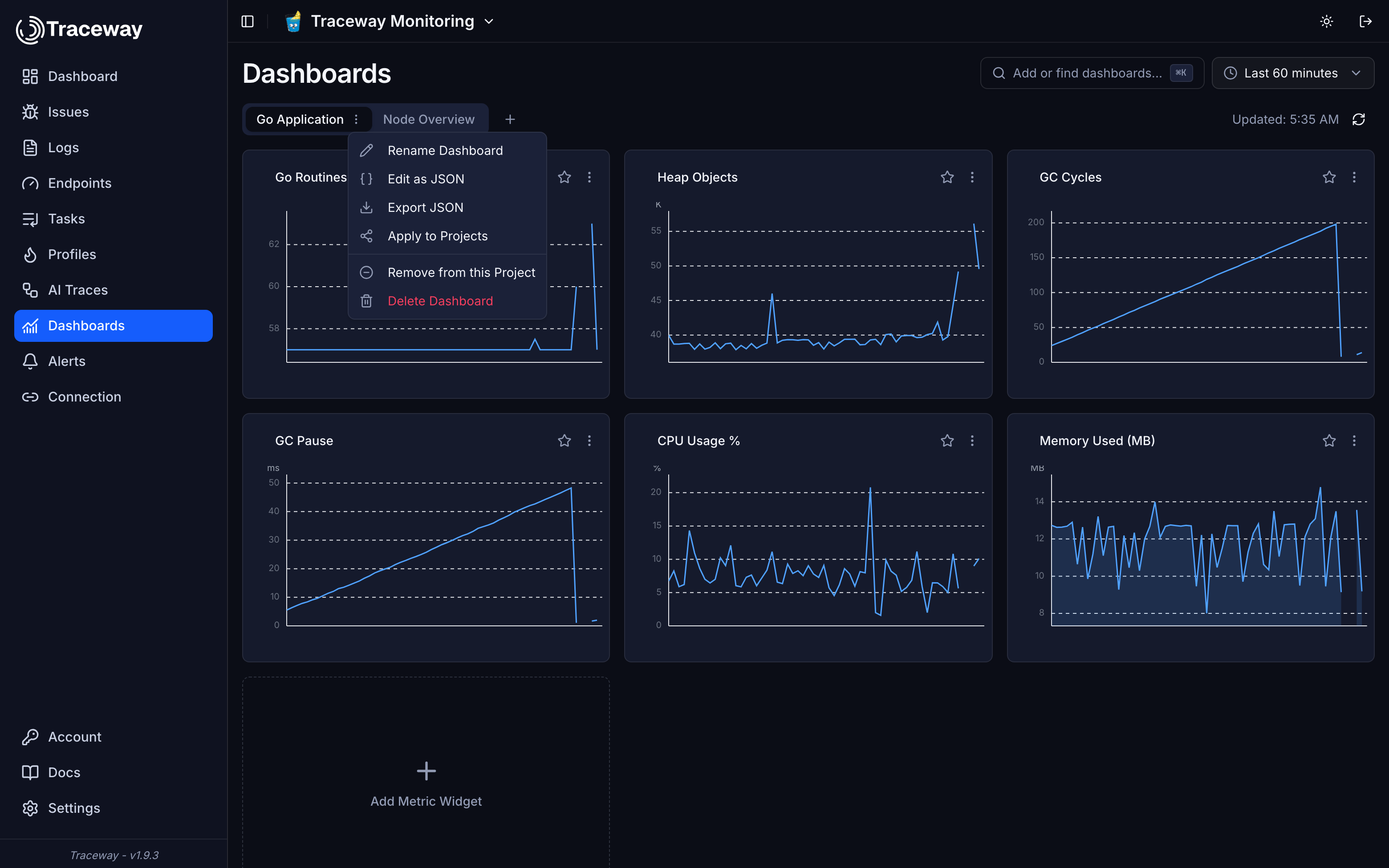
- Rename Dashboard: names are unique within the organization
- Edit as JSON: edit the whole dashboard as one document
- Export JSON: download the dashboard for versioning or sharing
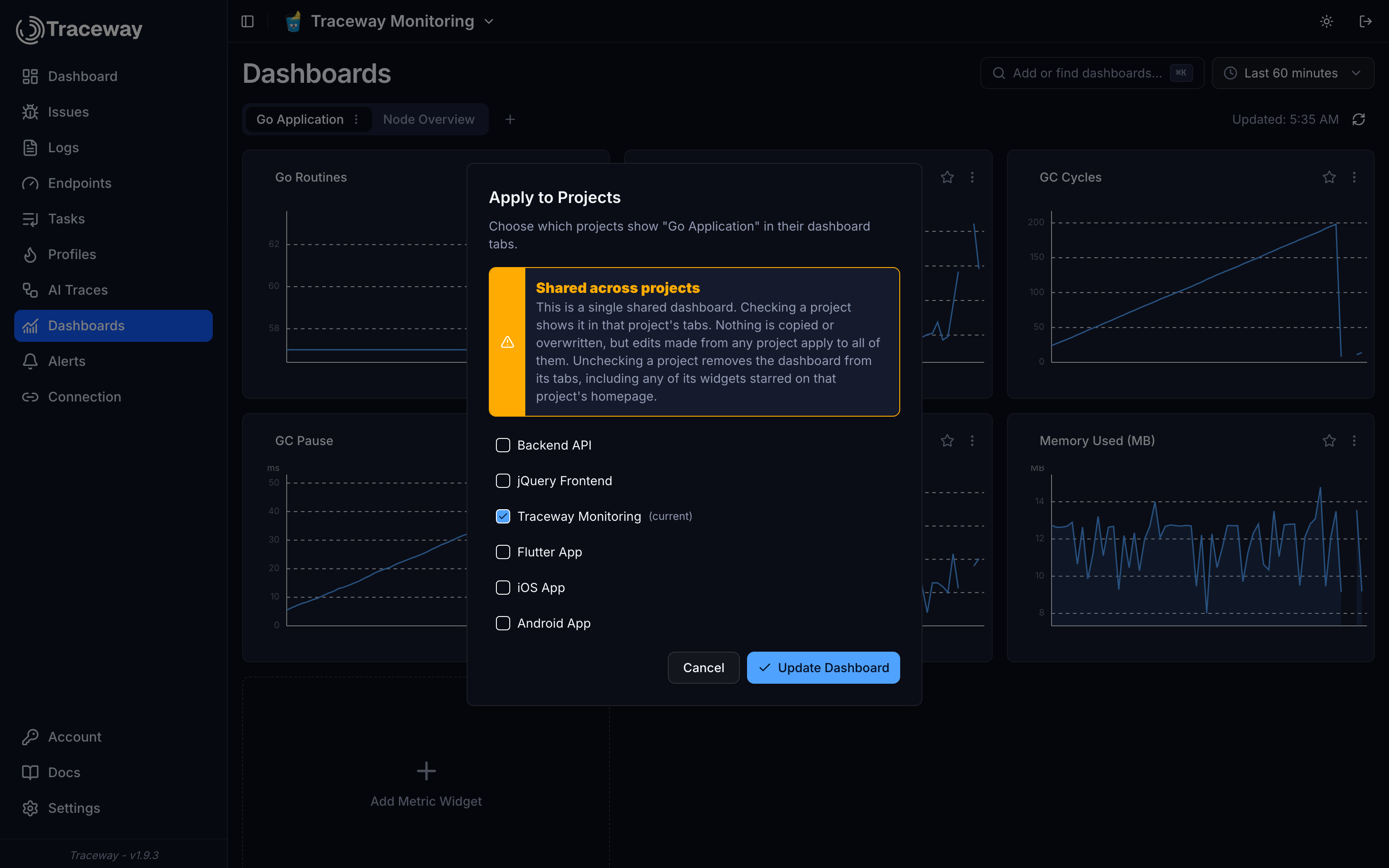
- Apply to Projects: choose which projects show this dashboard
- Remove from this Project: unassign it here; it stays available everywhere else
- Delete Dashboard: remove it from every project, permanently
Adding dashboards: the command palette
Press ⌘K (Ctrl K on Windows/Linux), or click Add or find dashboards... in the header. One search box covers your organization's dashboards, the built-in template marketplace, and every metric name seen across your organization's projects:
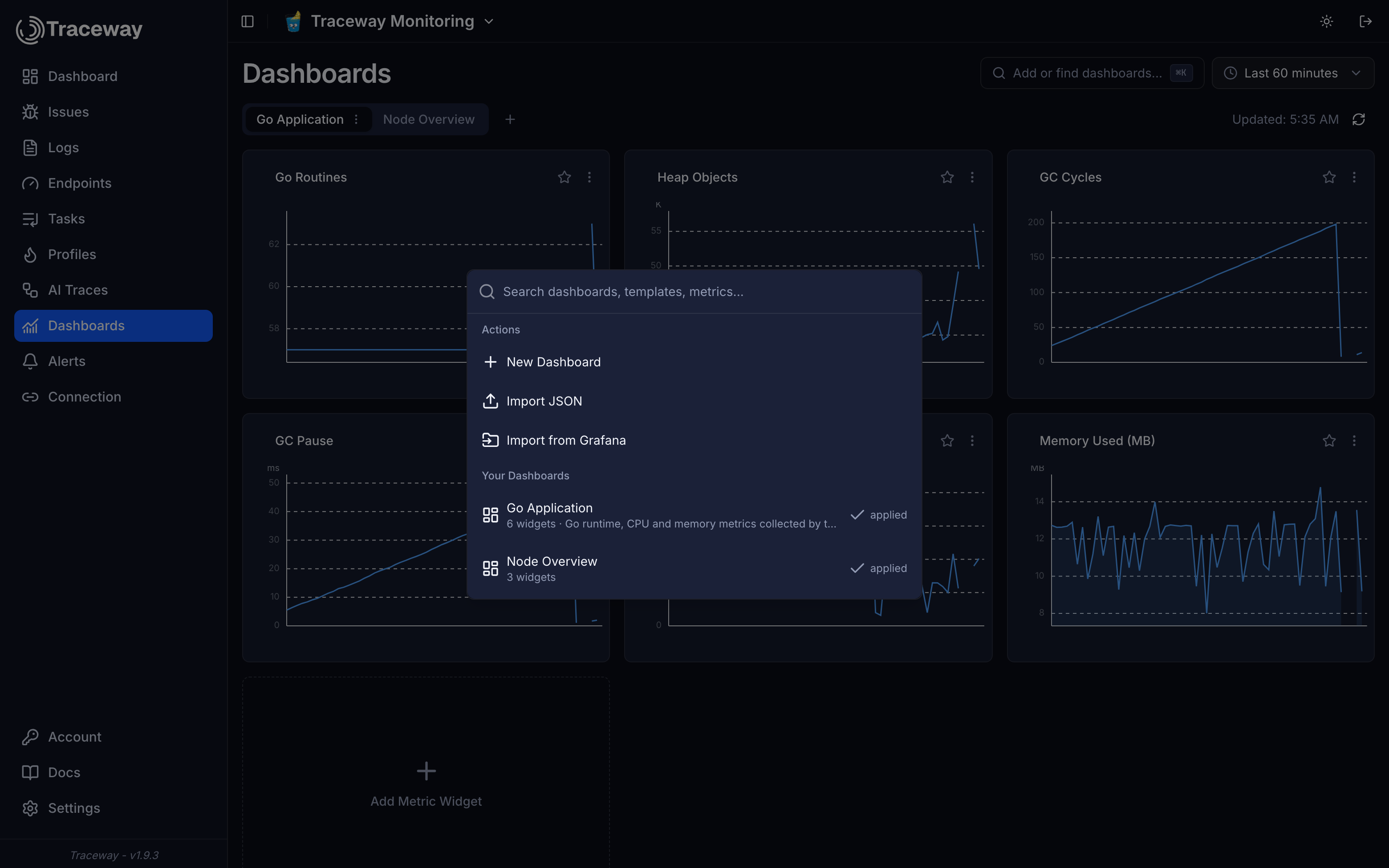
- Selecting one of your dashboards applies it to the current project (dashboards from another organization are copied)
- Selecting a template installs it as a new dashboard in your organization
- Selecting a metric opens the widget editor prefilled with that metric on the active dashboard
Built-in templates
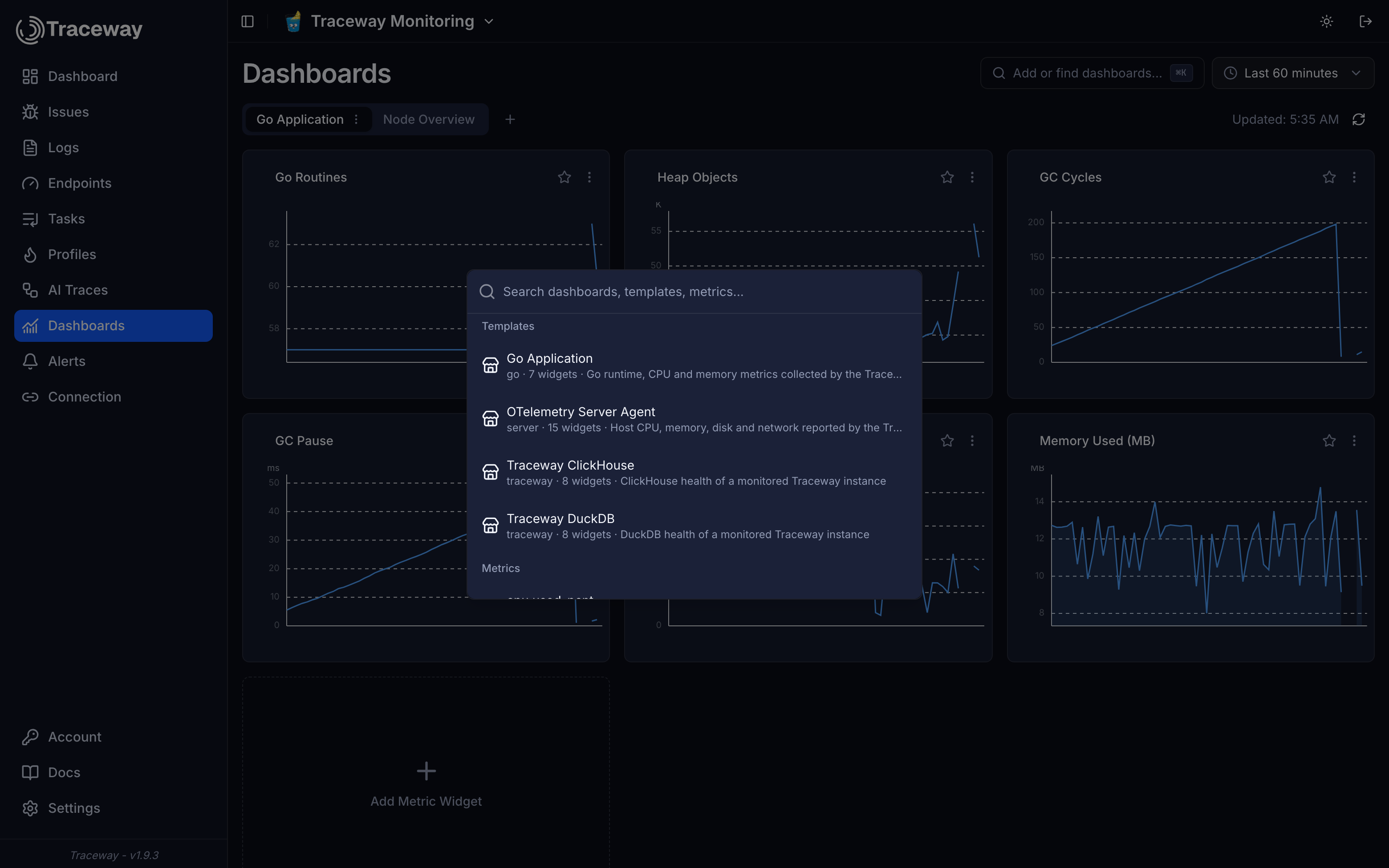
Templates are ready-made dashboards you install and then customize freely. The marketplace ships with:
| Template | Category | Source of the metrics |
|---|---|---|
| OTelemetry Server Agent | server | Traceway OTel Agent host CPU, memory, disk and network metrics |
| Go Application | go | Go runtime and process metrics (goroutines, heap, GC, CPU, memory) |
| Traceway ClickHouse | traceway | A monitored Traceway instance's traceway.ch.* metrics |
| Traceway DuckDB | traceway | A monitored Traceway instance's traceway.duckdb.* metrics |
Widgets can group series by resource tags such as container.name, k8s.pod.name, k8s.node.name, or postgresql.database.name, so one widget shows one line per container, pod, node, or database. Point the matching OpenTelemetry Collector receiver at your Traceway project's OTLP endpoint and build widgets on the metrics it reports.
Filtering by instance
The instance picker in the dashboard header narrows every widget on the page to one reporting machine. It lists the server_name values seen in the selected time range, so it stays in step with what is actually reporting rather than with a static list.
The scope is applied as an extra tag filter on each widget's queries, on top of whatever filters the widget already has. Nothing is saved to the dashboard, so it does not change what teammates see; it lives in the URL as ?server=<name> and survives time-range changes, which makes the filtered view shareable.
With All instances selected a widget shows whatever its sources define. The OTelemetry Server Agent template groups every widget by server_name, so its charts draw one line per server until you narrow the picker to one; a widget of your own does the same once you set its Group By to server_name.
This is where a row on the organization's Servers page leads. Selecting a server there opens its project's dashboards already scoped to that machine over the last 30 minutes, jumping straight to the OTelemetry Server Agent tab when the project has it installed. Clear the picker to go back to the whole project.
Counters, rates and inverted values
Host metrics such as system.network.io and system.disk.io are cumulative counters: the value only ever grows. Charted as an average they climb forever, so give such a source the rate aggregation. Each series (every distinct tag set, so a counter per device or direction stays on its own) is differenced against its previous sample, resets are dropped, and the result is a per-second rate with a matching unit: bytes become B/s, packets become packets per second. A rate keeps the same reach as any other aggregation. On ClickHouse a range over six hours reads the minute rollup and one over three days reads the hourly rollup, so buckets there are at least an hour wide.
A source can also be inverted, which charts 1 − value. The OTel agent reports system.cpu.utilization per state, and the idle state inverted is the busy share; that is how the Server Agent template draws CPU. The template's other widgets carry the matching state filters (used for memory and filesystem, ESTABLISHED TCP for open connections) so a widget never averages unrelated states together.
Dashboards installed from the Server Agent template before these sources existed are upgraded once at startup: a widget that still carries the original plain average takes the template's current sources for its metric, a widget you have edited is left as it is.
Dashboards as code
Every dashboard is a single JSON document. Widget order in the array is the display order, and each widget carries its own config:
{
  "schemaVersion": 1,
  "name": "Server",
  "widgets": [
    {
      "id": "w_6f8d9c6d",
      "title": "CPU Utilization",
      "widgetType": "line_chart",
      "config": {
        "sources": [
          { "type": "metric", "name": "system.cpu.utilization", "aggregation": "avg" }
        ]
      }
    }
  ]
}
Edit as JSON gives you the document in place, validated on save:
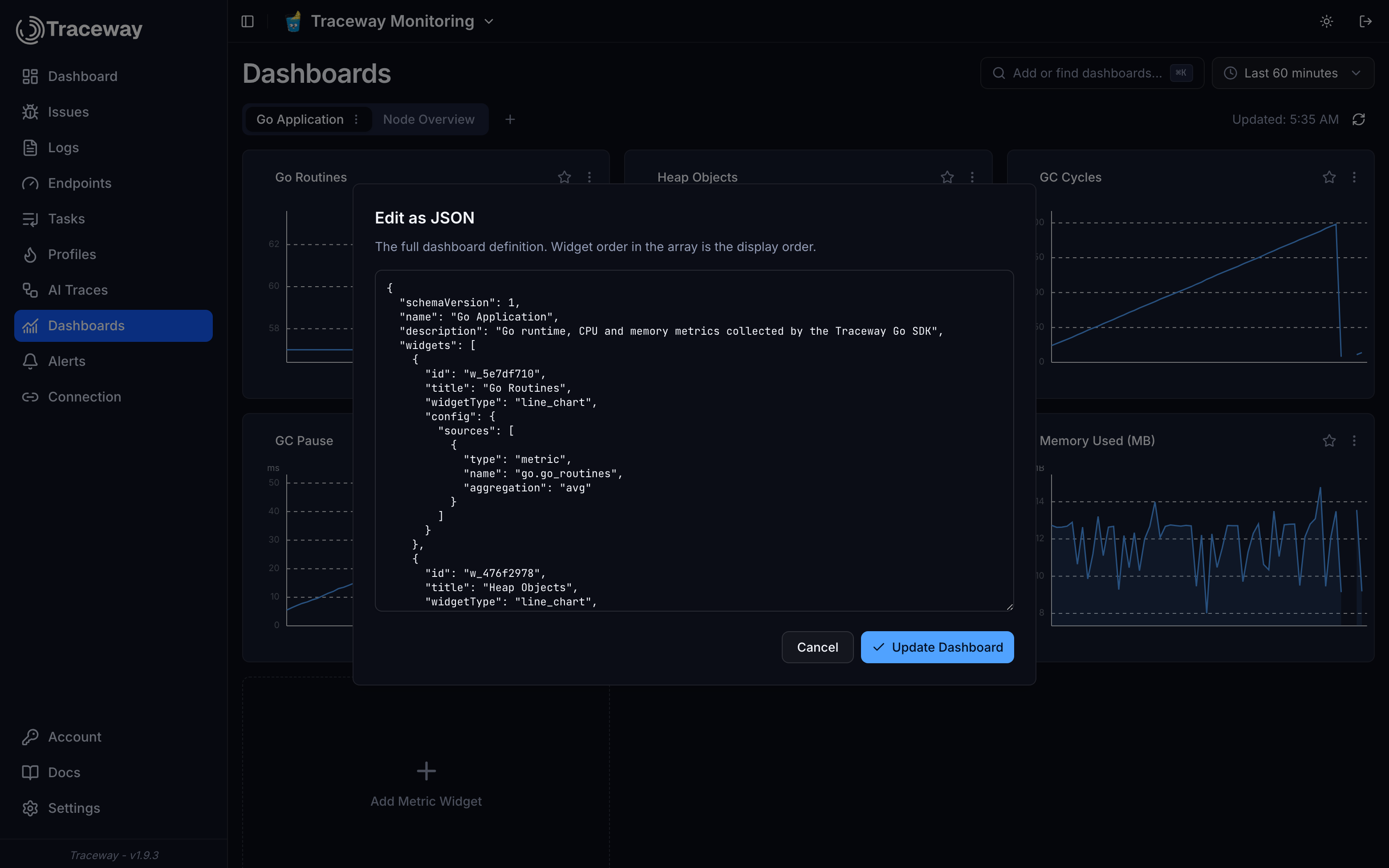
Export/Import round-trips the same document. Import accepts a single dashboard or a whole-organization bundle, and the API supports an upsert mode that matches dashboards by name, so a CI job can keep dashboards in sync from files in your repository:
curl -X POST "$TRACEWAY_URL/api/dashboards/import?projectId=$PROJECT_ID" \
  -H "Authorization: Bearer $TRACEWAY_PAT" \
  -H "Content-Type: application/json" \
  -d "{\"mode\": \"upsert\", \"data\": $(cat system.dashboard.json)}"
Widget ids are server-generated stable strings; keep them when editing so homepage stars survive, or omit them and they are regenerated.
Applying across projects
Apply to Projects controls exactly which projects show a dashboard. Because the definition is shared, a fix made in one project is instantly live in all of them. Unchecking a project only removes it from that project's tabs.
Importing from Grafana
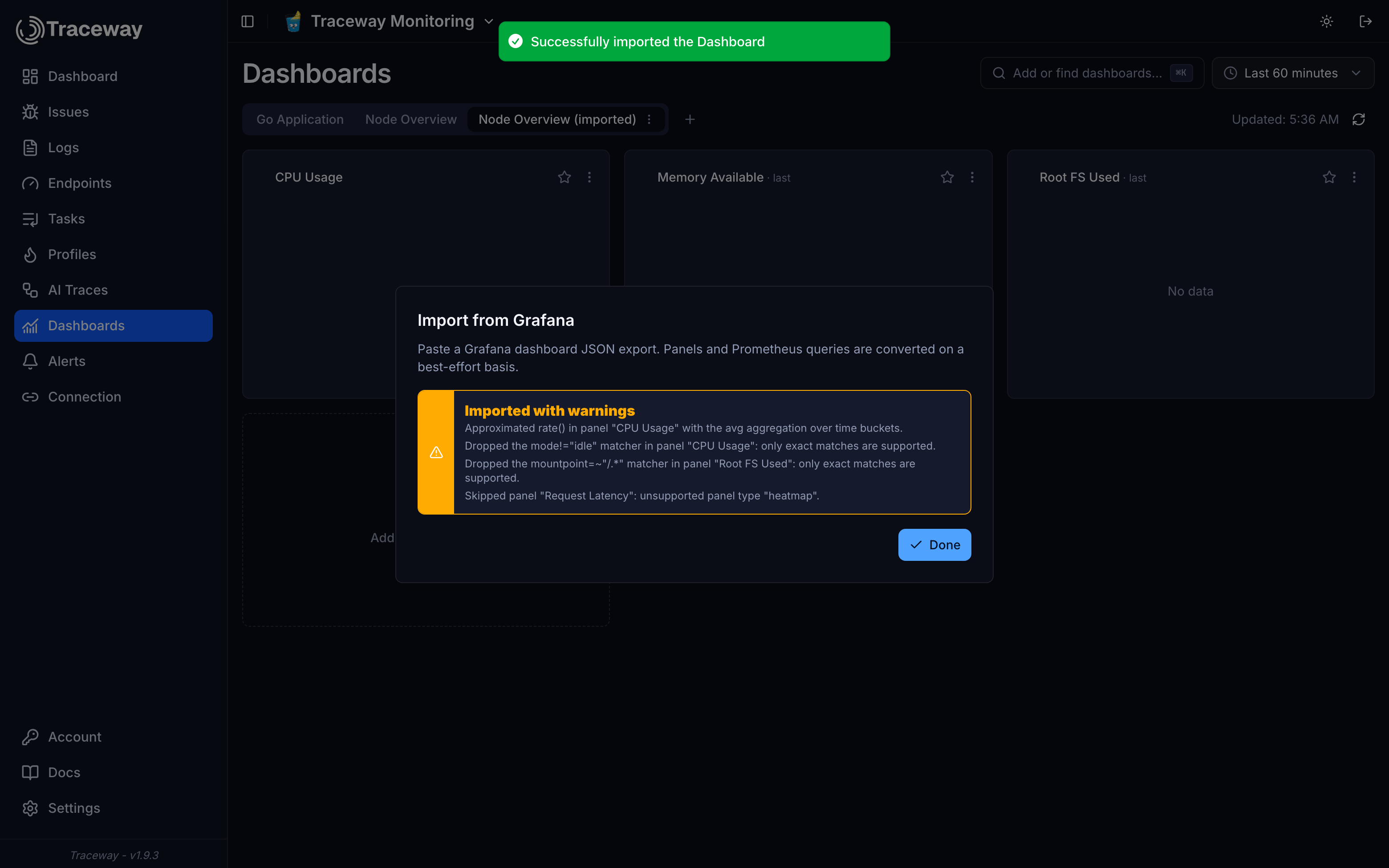
Paste any Grafana dashboard JSON export and Traceway converts it on a best-effort basis: timeseries/graph panels become line charts, stat becomes a single value, gauge stays a gauge, and Prometheus queries are unwrapped into metric sources (metric name, exact label matchers, by (...) grouping, aggregation).
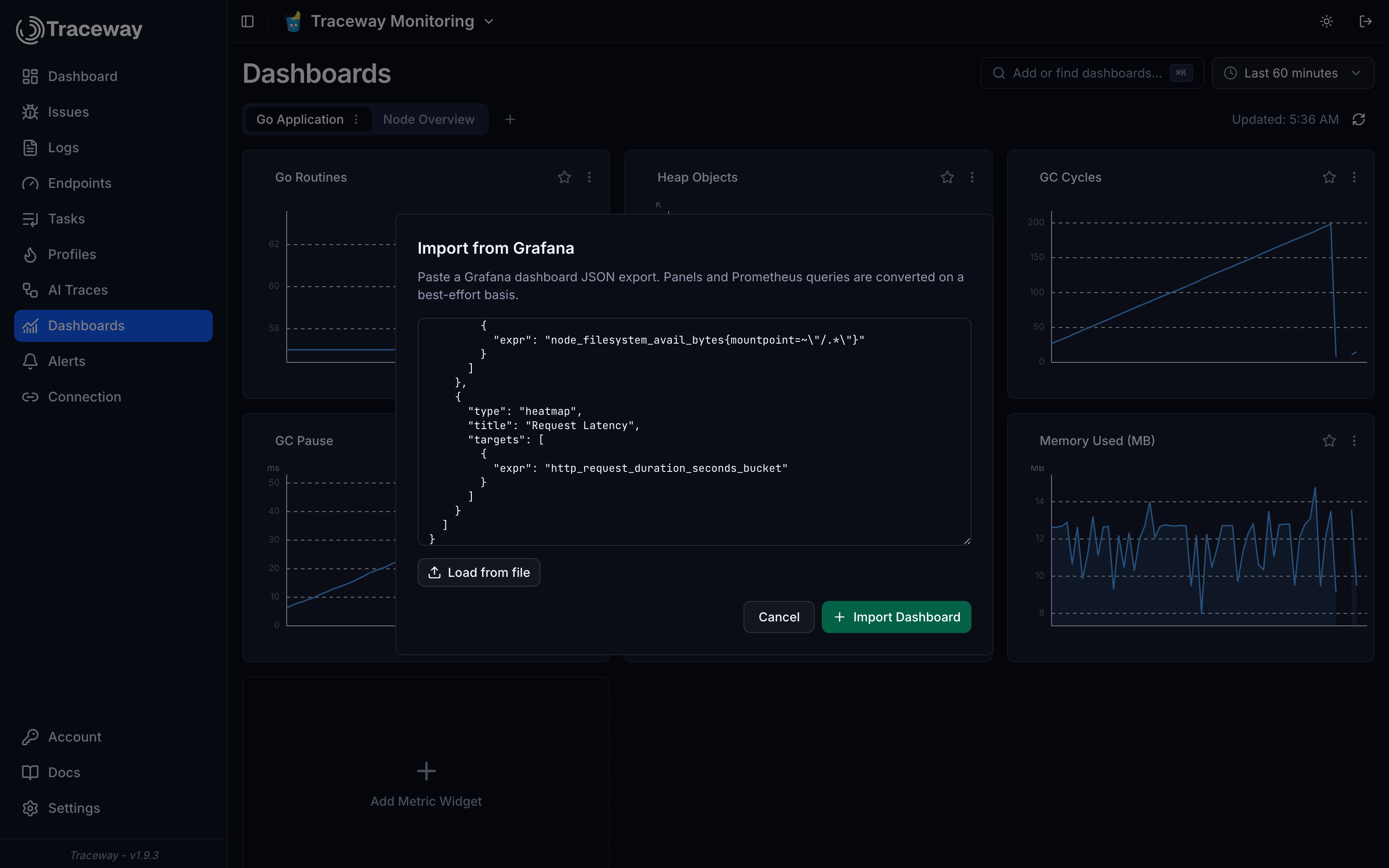
Anything that cannot be converted faithfully is reported instead of silently dropped: rate() approximations, unsupported panel types, regex matchers, non-Prometheus queries.
Widgets
| Type | Best For |
|---|---|
| Line Chart | Trends over time (CPU usage, request rate) |
| Area Chart | Volume over time with filled area |
| Stacked Area | Composition of a total across series |
| Bar Chart | Comparing values across time intervals |
| Single Value | Current or aggregated value at a glance |
| Gauge | A value against thresholds |
| Table | Tabular view of metric values |
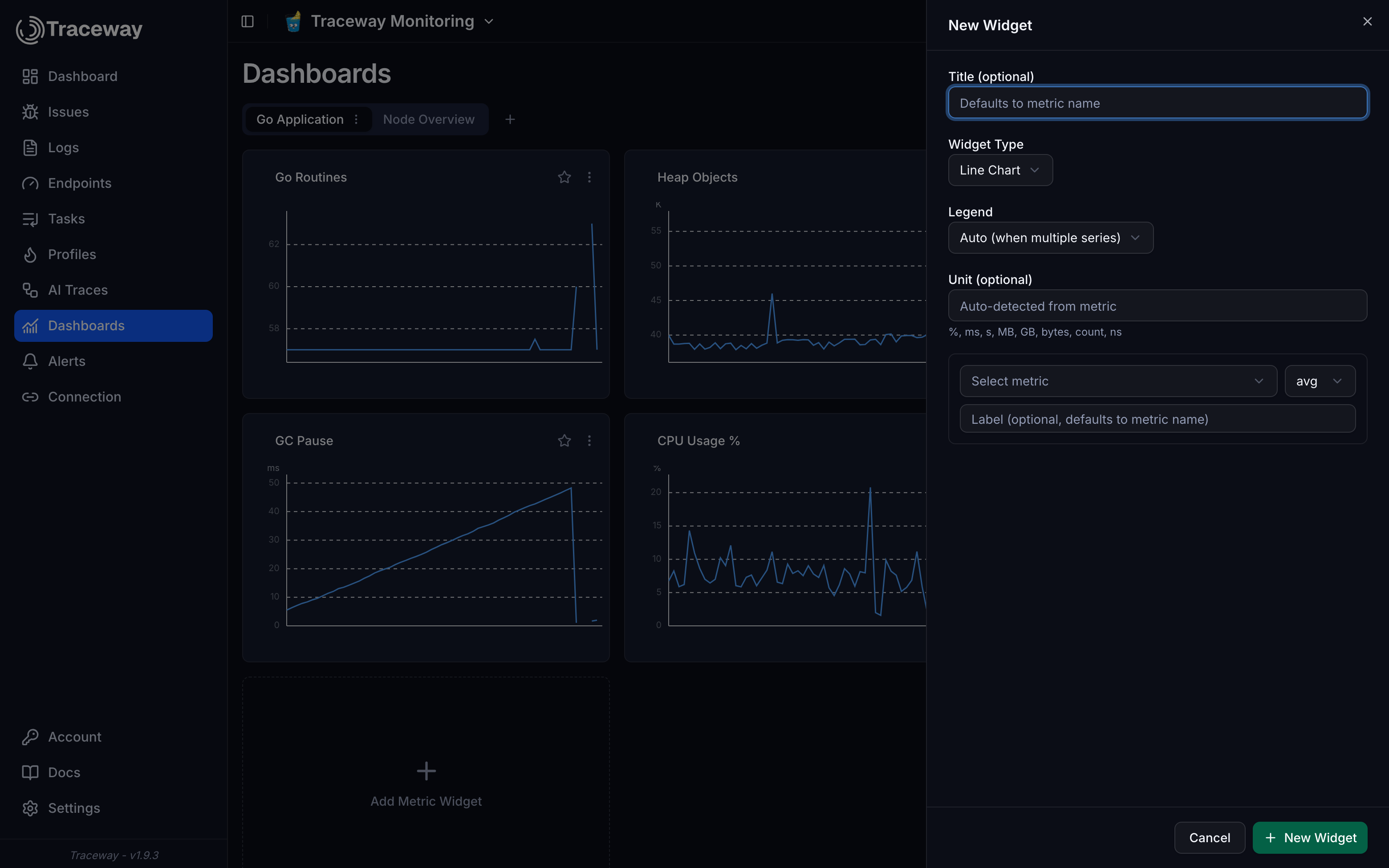
Each widget has one or more sources: a metric name (auto-discovered from your project), an aggregation (avg, min, max, sum, count, last), optional tag filters, and an optional group-by that splits the chart into one series per tag value. Multiple sources overlay on the same chart.
Starring widgets
The star on any widget pins it to that project's homepage, where you can resize and reorder your starred set. Stars are per project, so each project curates its own homepage even when dashboards are shared.