On-Call
On-Call turns an alert into a person's phone ringing. Alerts on their own post to a channel and hope somebody is watching. A page keeps escalating until a human acknowledges it.
Traceway ships the full paging stack: teams, rotating schedules, escalation policies, per-responder contact methods, and a no-login acknowledge link. It lives under On-Call in the sidebar, and the badge there counts the pages still open on the current project.
That badge and that queue are per project. For pages across every project in the organization at once, use the organization's On-Call page.
How the pieces fit together
An alert rule fires, and instead of sending a message it opens a page. The page walks an escalation policy. Each step of that policy names targets, and a target resolves to people through a schedule, a team, or a direct user. Each of those people is then reached through their own contact methods, in the order their notification rules define.
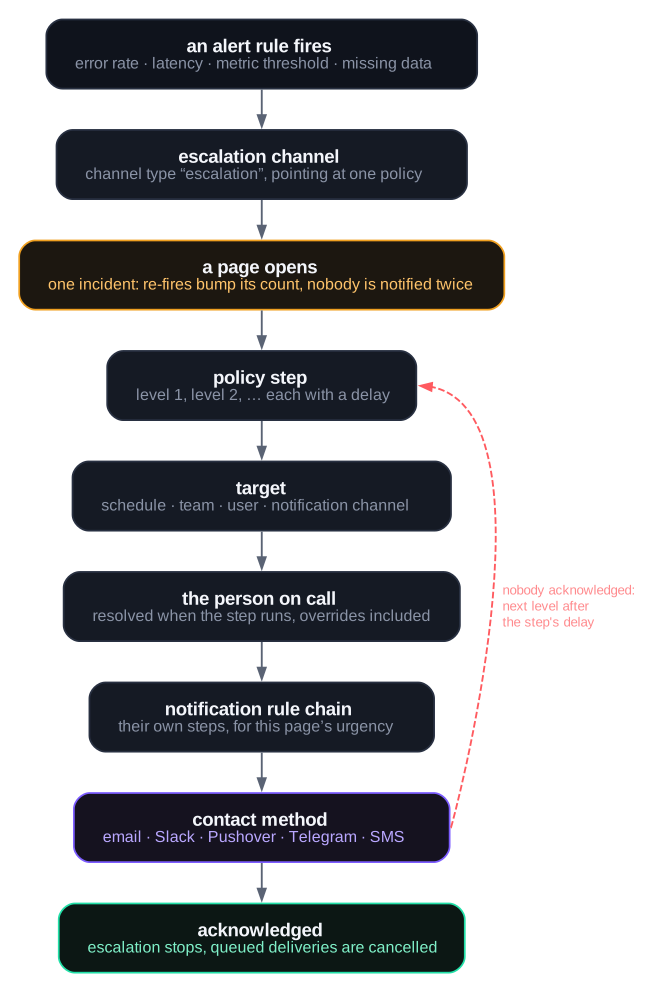
Two ideas are worth holding onto:
- The page is the unit of work, not the message. A noisy rule that fires two hundred times produces one page. Re-fires bump an event counter and never restart the escalation clock.
- Escalation stops on acknowledge, not on delivery. Sending a message proves nothing. Traceway keeps climbing the policy until somebody acknowledges, or until the policy is exhausted.
Setting it up
The pieces reference each other, so build them in this order. Steps 1 to 3 are organization scoped and need the owner or admin role. Step 4 is project scoped and needs write access on the project, not an admin role. Contact methods are personal, so every responder does step 5 for themselves.
- Create a team. It groups the responders and owns the projects they are responsible for.
- Build a schedule for that team, so there is always somebody on call.
- Create an escalation policy whose first step points at that schedule.
- Add an escalation channel on the Alerts page pointing at the policy, then attach your rules to it.
- Tell each responder to add contact methods, and optionally a notification rule chain.
Step 5 is the one teams forget. It still works without it, because a responder with no contact methods is paged on their account email, but nobody wants to find that out during an incident.
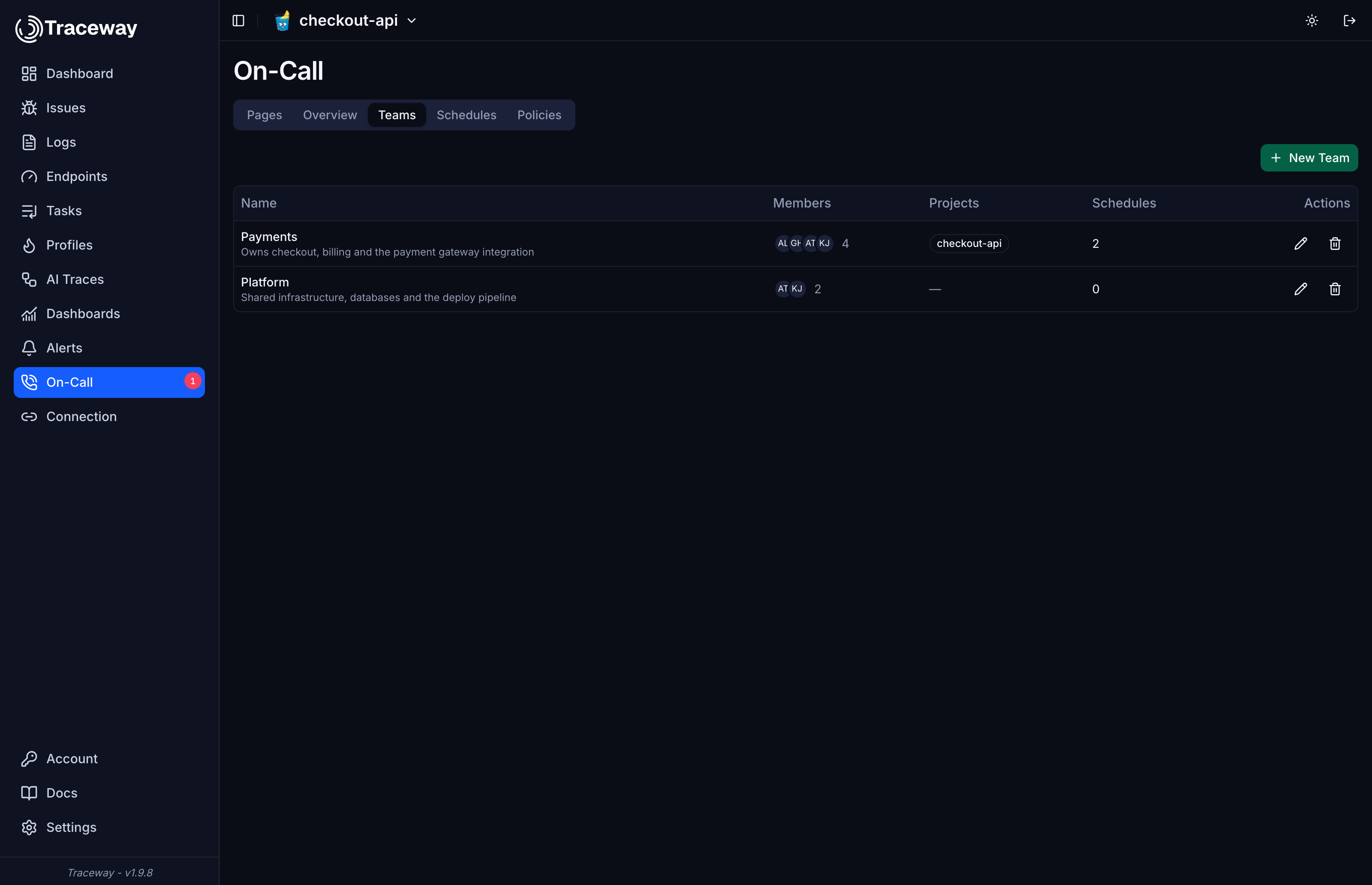
Teams
A team is a named group of people that owns projects. Ownership is one project to one team, so every project has at most one team answering for it. The issue detail page uses that link to show who is on call for the project you are looking at.
Creating or editing a team sets its name, description, members, and owned projects in one dialog.
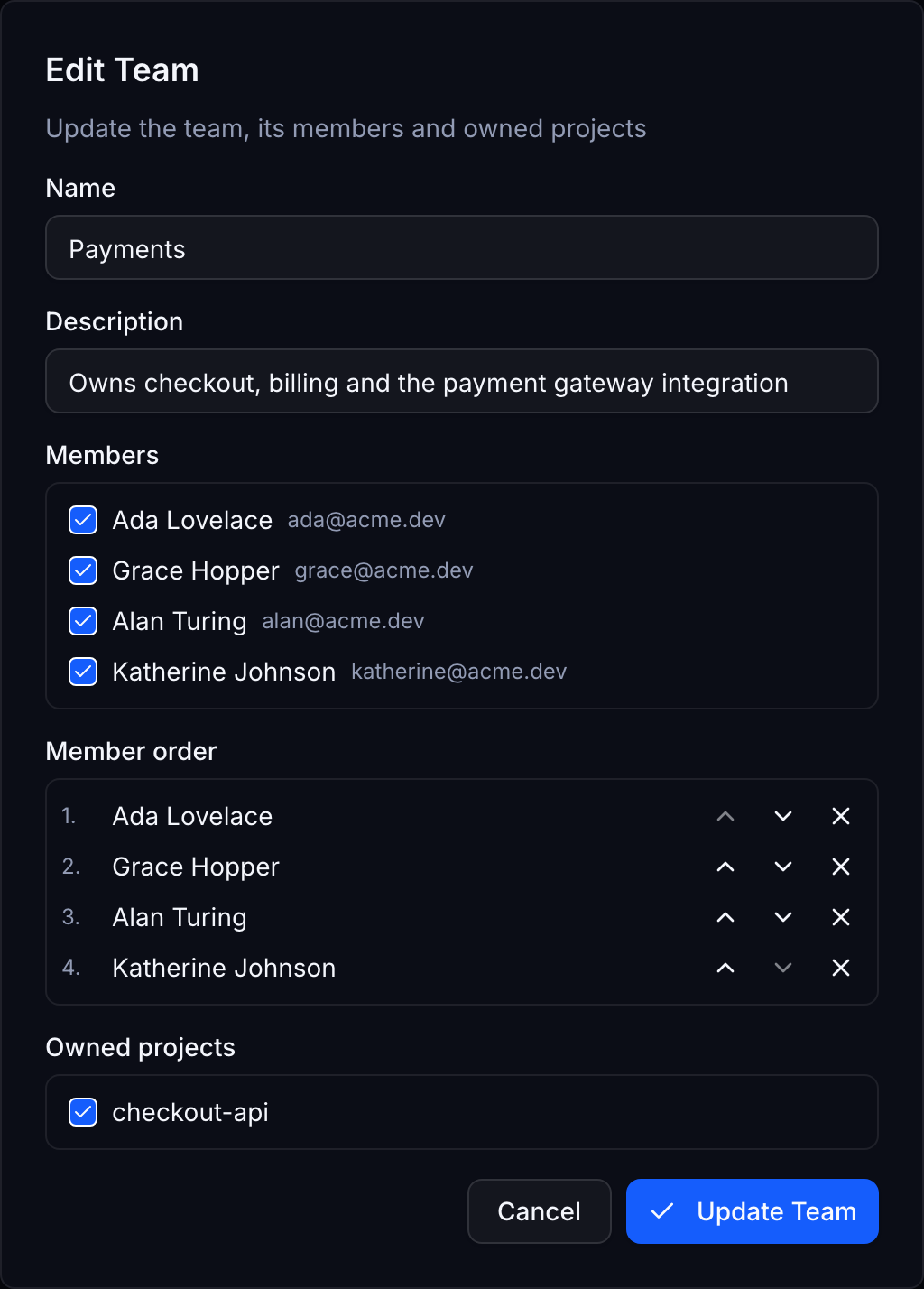
Members are stored in order, but that order is only how the team is listed. A policy step targeting the whole team pages every member at once. Schedule layers do not inherit it either. Each layer keeps its own rotation order, picked from anyone in the organization.
Schedules
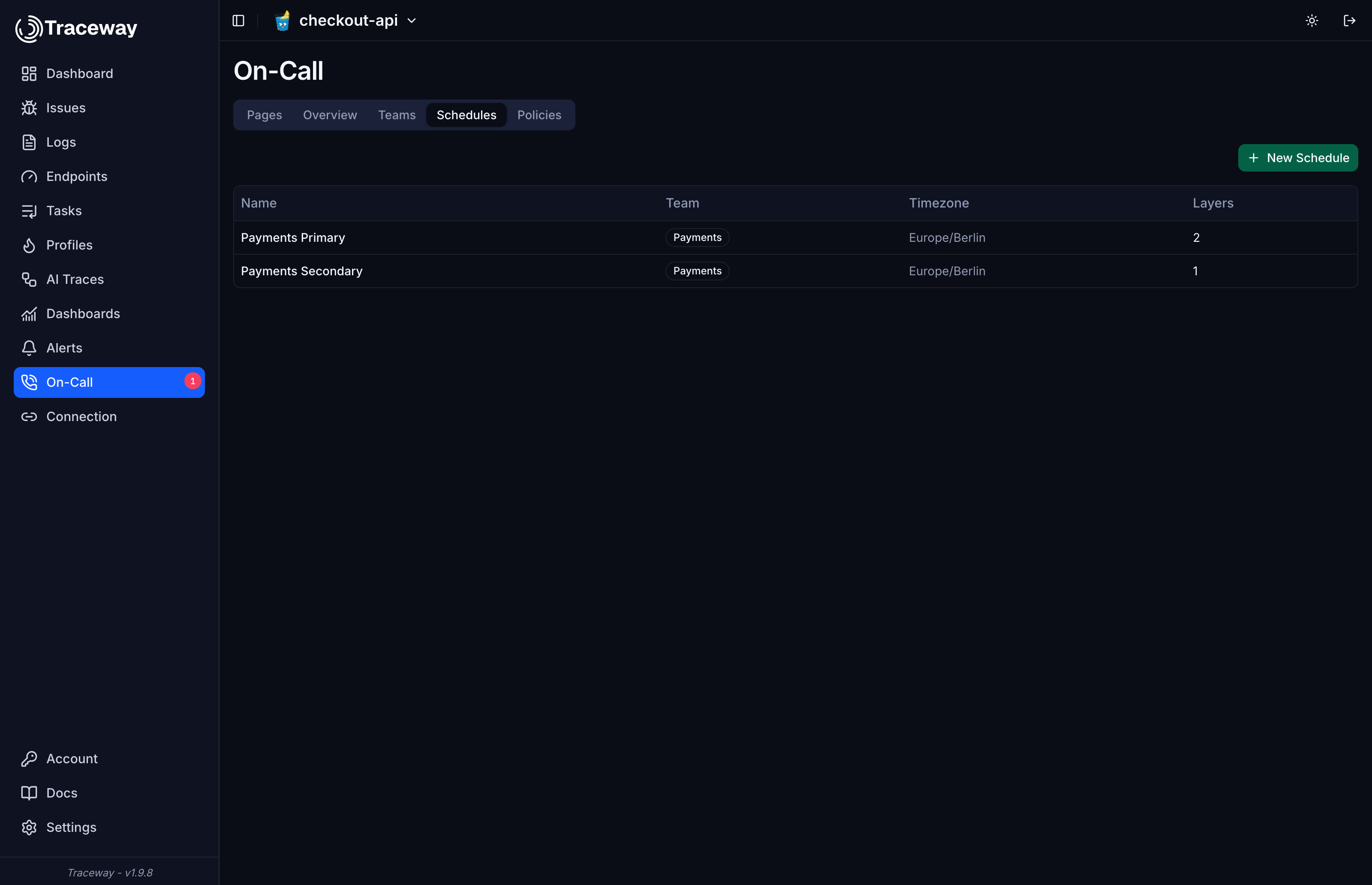
A schedule answers one question: who is on call right now. It belongs to a team, carries its own timezone, and is built from layers.
Layers
Each layer is an independent rotation over a list of people. Layers stack, and a layer later in the list takes precedence over the ones before it. At any instant at most one person is on call for the schedule, which is the highest-precedence layer covering that moment. If no layer covers it, nobody is on call and a policy step targeting the schedule reaches nobody.
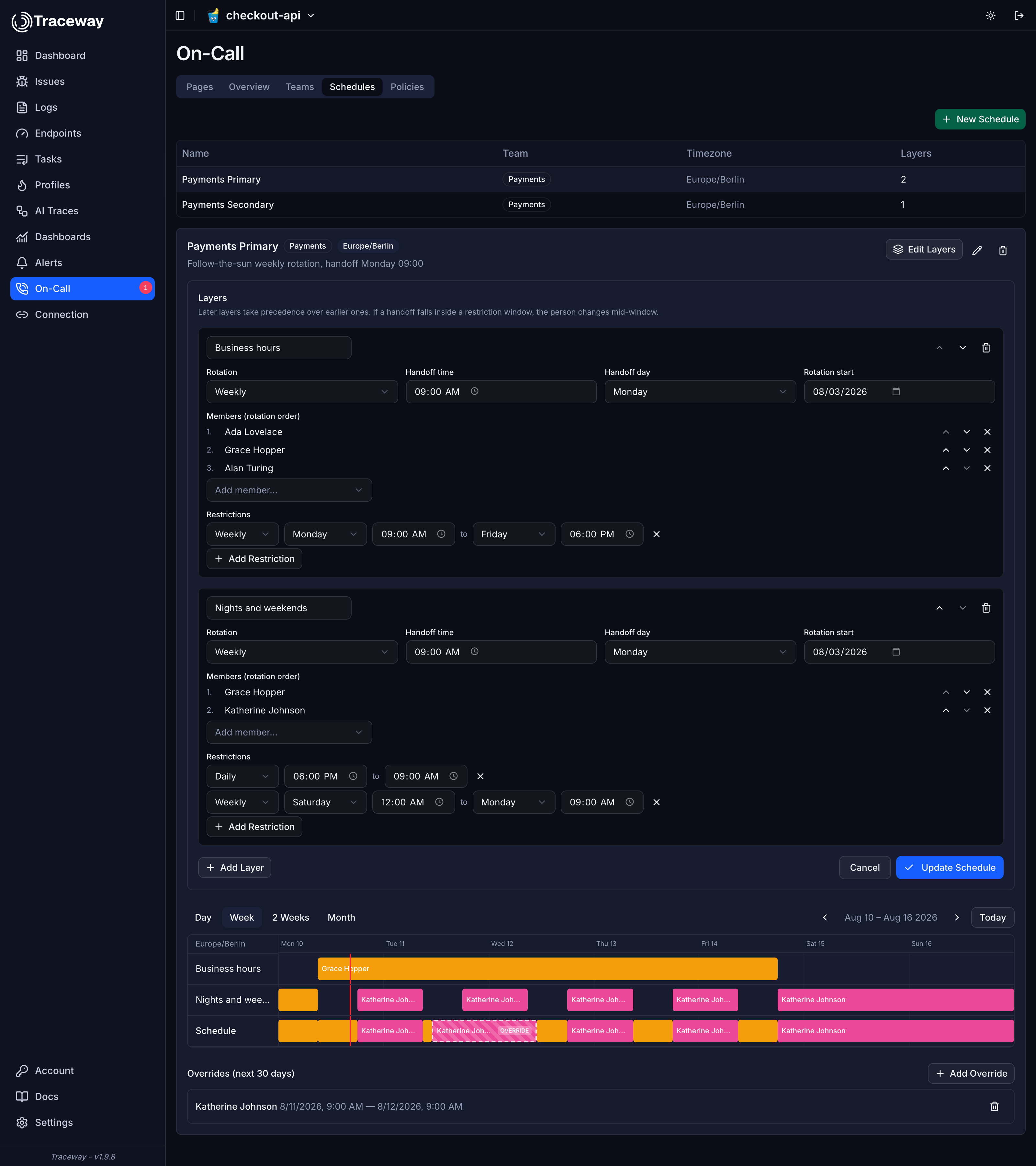
A layer has:
| Field | Meaning |
|---|---|
| Rotation | daily, weekly, or custom (every N days) |
| Handoff time | The wall-clock time the shift changes hands, in the schedule's timezone |
| Handoff day | Which weekday the handoff happens on, for weekly rotations |
| Rotation start | The anchor date the rotation counts from |
| Members | The people to rotate through, in order |
| Restrictions | Optional windows that limit when this layer covers anything |
Restrictions
A restriction narrows a layer to certain hours or days. Without one, the layer covers every minute. Two shapes are supported:
- Daily, for example 18:00 to 09:00. A window that ends earlier than it starts wraps past midnight.
- Weekly, for example Saturday 00:00 to Monday 09:00. These can span several days.
Restrictions are evaluated in the schedule's timezone, so daylight saving changes are handled for you. On a spring-forward day a wall-clock time inside the skipped hour resolves back an hour, so a window ending in that hour is simply an hour shorter that night. A short window that reaches into the gap can collapse to nothing, in which case the layer covers nothing that day and only that day. The days around it are unaffected.
The screenshot above shows the common pattern: a business hours layer restricted to Monday 09:00 through Friday 18:00, and a nights and weekends layer below it restricted to the inverse. Layers are listed in precedence order, so the one further down wins where the two overlap. The bottom Schedule row of the timeline is the stacked result, which is who actually gets paged.
Timezone
The schedule's timezone is what handoff times and restrictions mean. Set it to where the people live, not where the servers live. A rotation set to Europe/Berlin hands off at 09:00 Berlin time all year, through daylight saving on both sides.
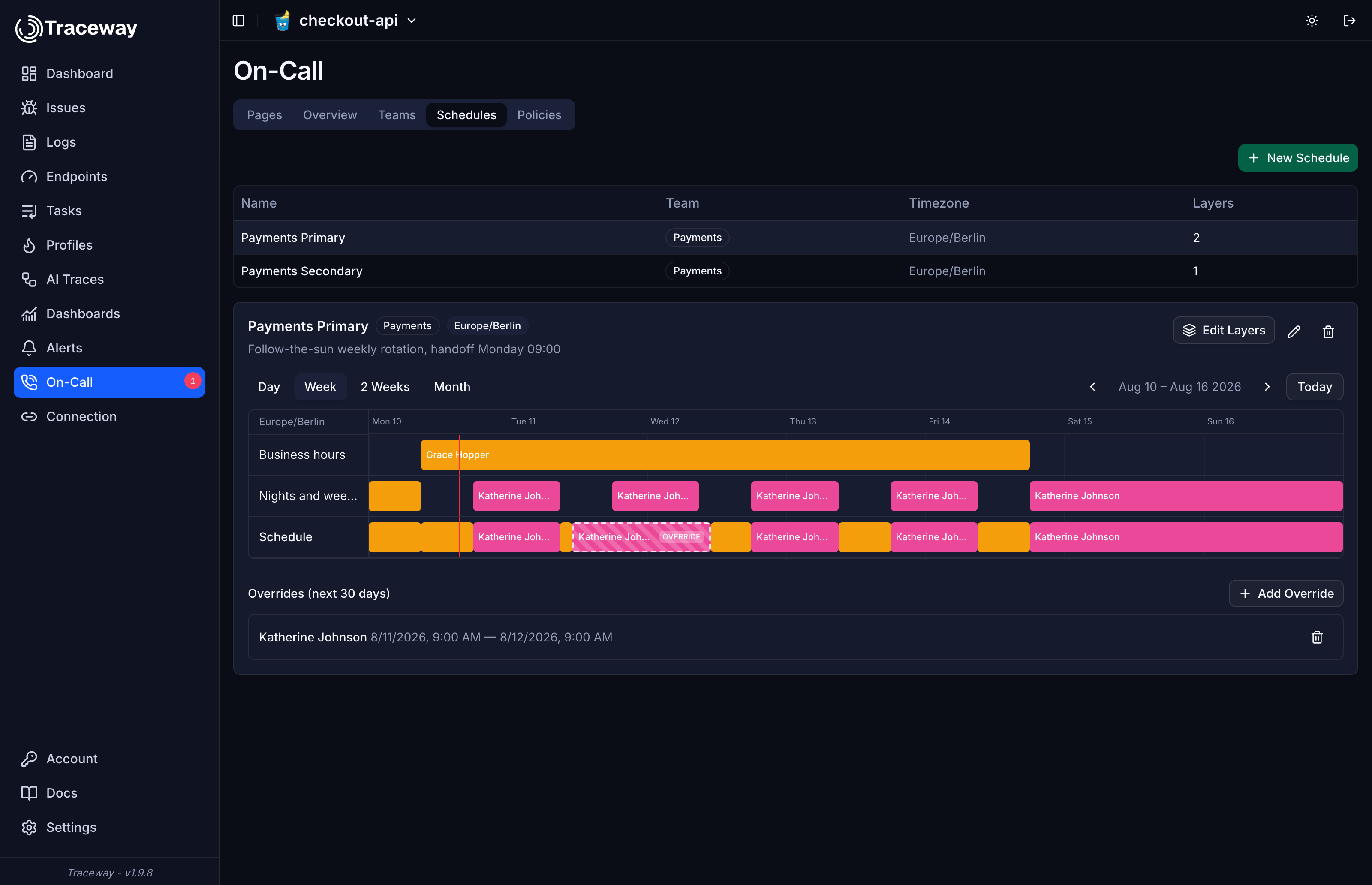
The timeline renders in the schedule's timezone and marks the current moment with a red line. It can span at most 62 days per request, which the Day, Week, 2 Weeks, and Month controls stay inside.
Overrides
An override temporarily replaces whoever the layers would have picked. Use it for a doctor's appointment, a swapped weekend, or someone going on vacation.
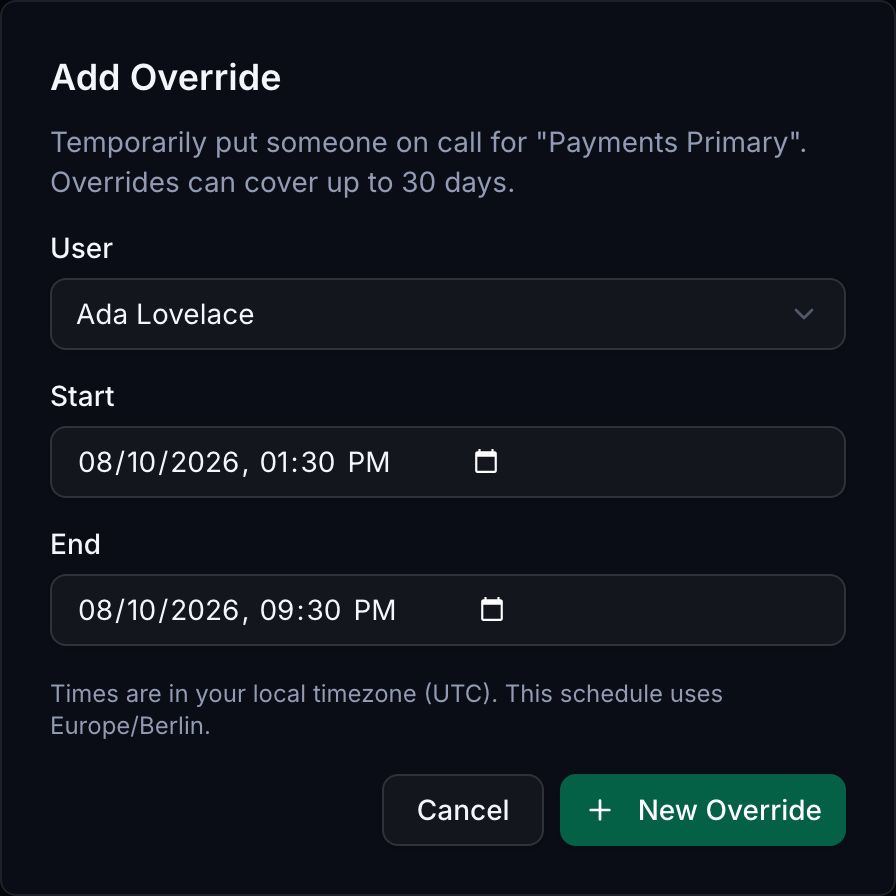
Overrides beat every layer. Where two overrides overlap, the one created most recently wins. They appear on the timeline as a dashed block labelled OVERRIDE.
They are also the one on-call mutation any member can make, not just admins. Covering for a teammate should not need an administrator. An override can cover at most 30 days, and it can be deleted by whoever created it, the person it covers, or an admin.
Escalation policies
A policy is the ordered list of who to wake, and how long to wait before giving up on them.
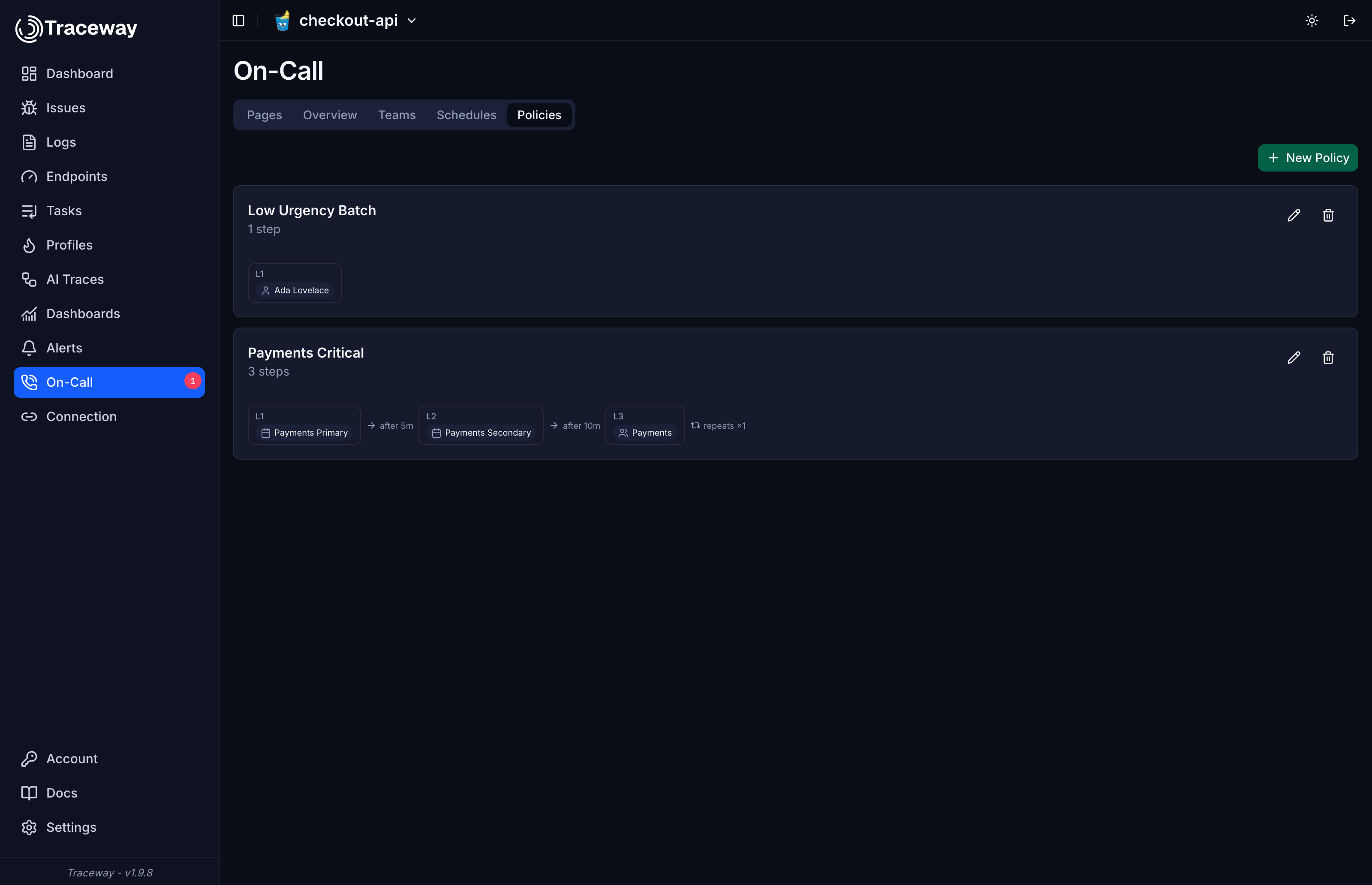
Each step holds one or more targets and a delay. The delay is how long the page waits for an acknowledgement before moving to the next step.
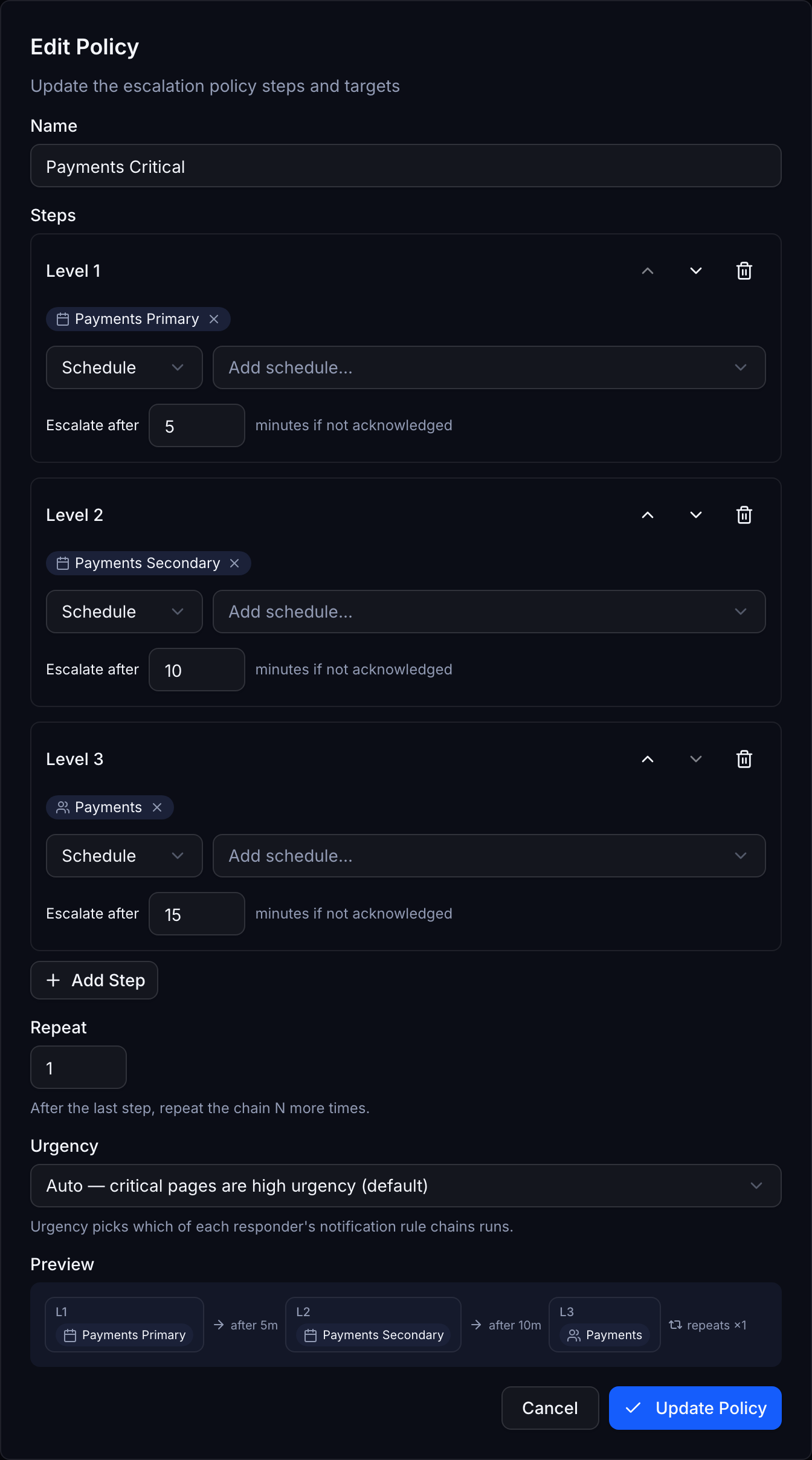
A target is one of:
| Target | Resolves to |
|---|---|
| Schedule | Whoever is on call for that schedule at the moment the step runs |
| Team | Every member of the team |
| User | That specific person |
| Channel | A notification channel, for posting the page into Slack or a webhook alongside the human paging |
A page snapshots its policy the moment it opens, so editing a policy never changes pages that are already escalating. Inside that snapshot, targets are still resolved to people when the step runs. A schedule target reaches whoever is on call at that moment, including an override that started five minutes ago.
Because a policy that points at something deleted would page nobody, a schedule or team a live policy targets cannot be deleted. Remove the step first. The same guard already stops you deleting a policy a channel is using.
Within a single step, each person is notified once. Someone who appears on two targets of the same step does not get two pages.
Repeat
After the last step, Repeat sends the whole chain around again up to five more times. Use it when a page must not be allowed to go unanswered overnight. With repeat set to zero the page stays open after the last step, but nothing further is sent.
Urgency
Urgency decides which of the responder's two notification rule chains runs.
| Setting | Behaviour |
|---|---|
| Auto (default) | Critical severity becomes high urgency, everything else becomes low |
| Always high | Every page from this policy is high urgency |
| Always low | Every page from this policy is low urgency |
Urgency is resolved once when the page opens and then remembered. A low severity re-fire can never quietly downgrade a page that is already escalating at high urgency.
Connecting alerts to a policy
Paging is wired in through the normal Alerts machinery. Create a channel with the type Escalation policy and point it at the policy you want.
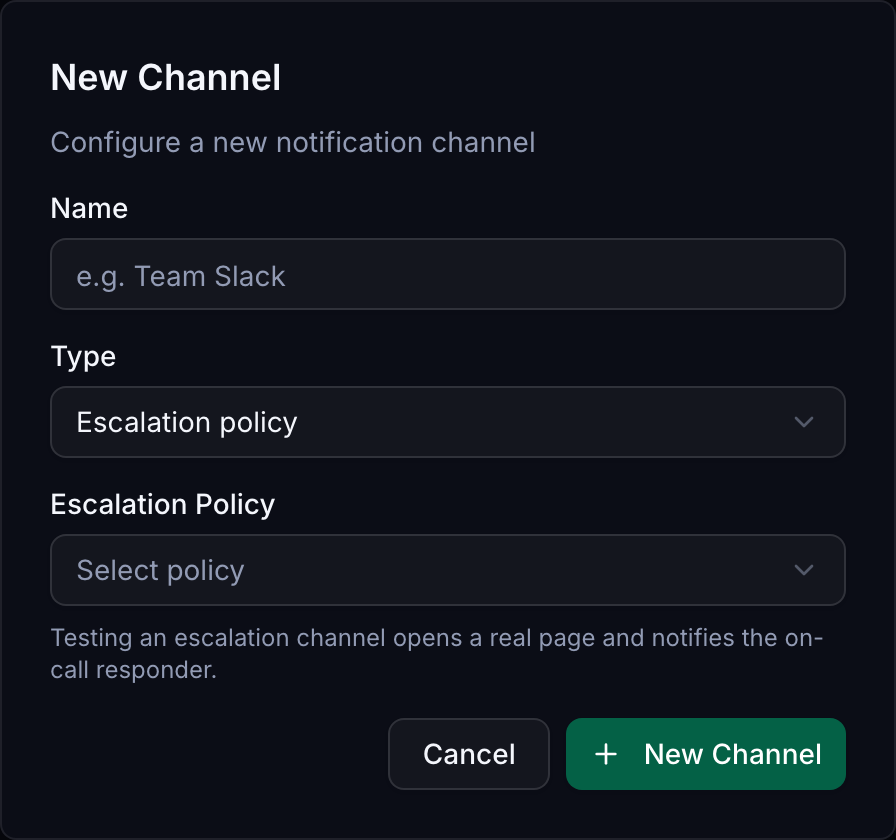
Then attach any rule to that channel, exactly as you would for Slack or email. When the rule fires, the channel opens a page instead of sending a message.
The channel's Test button opens a real page and runs the real escalation. It is the honest way to find out whether your rotation and your policy work. Two things to know about it. The test page is created with info severity, so a policy left on Auto treats it as low urgency and runs your low urgency chain. And every test of the same channel shares a dedup key, so pressing Test again while the previous test page is still unresolved only bumps that page. Resolve the test page when you are done.
The policy must belong to the same organization as the project. The dialog only lists policies you can actually use.
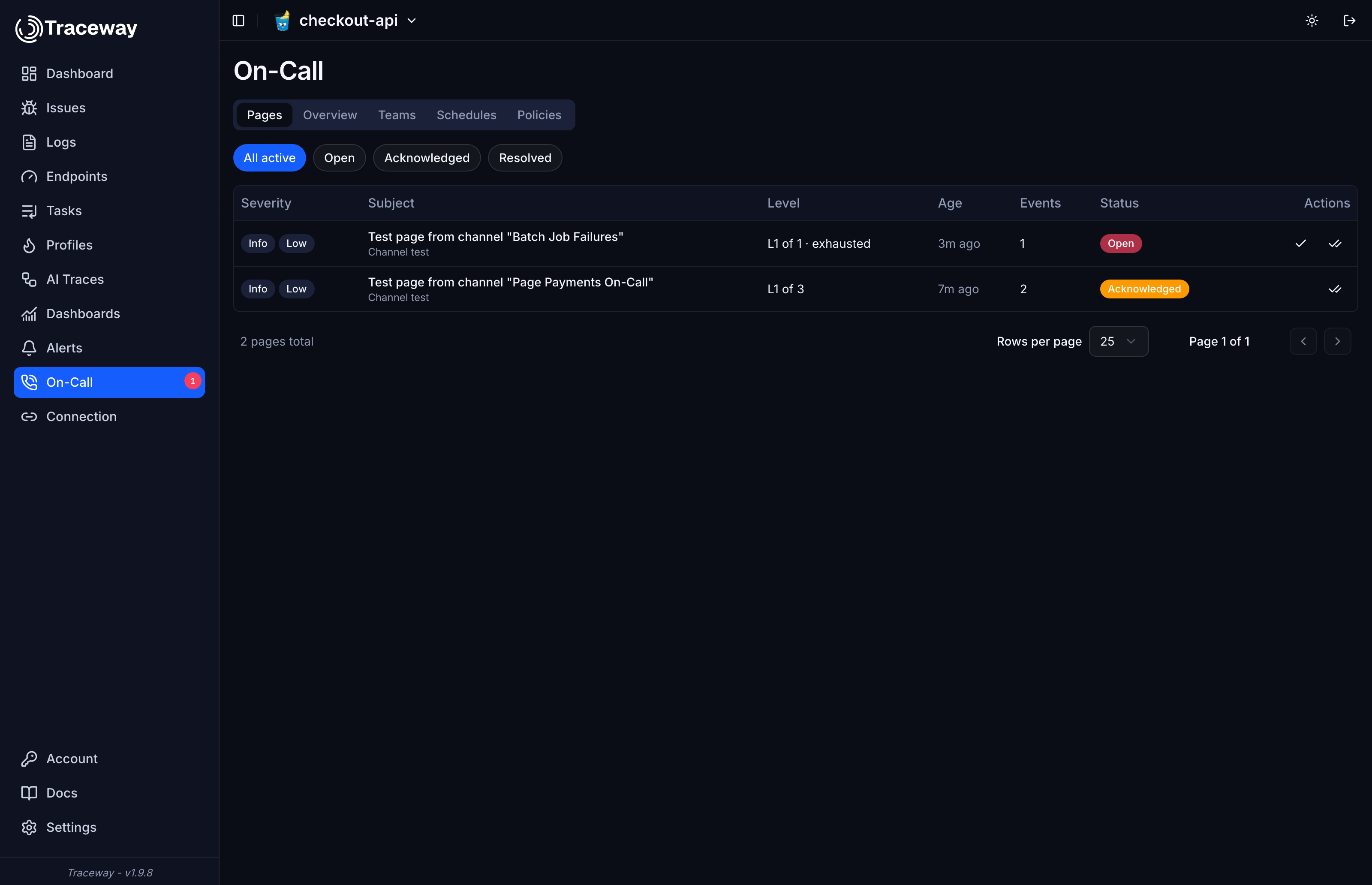
Pages
A page is one incident. It has a status, an escalation level, and a delivery log.
| Status | Meaning |
|---|---|
| Open | Nobody has taken it. Escalation is running. |
| Acknowledged | Somebody is on it. Escalation has stopped, and queued deliveries are cancelled. |
| Resolved | Finished. The dedup key is released, so the same condition can open a fresh page. |
Deduplication
While a page is unresolved, the same rule and dedup token bump the existing page instead of opening a new one. The event counter goes up, the escalation clock is untouched, and nobody gets notified again.
This is what keeps a flapping error from turning into a pager storm. A rule that fires sixty times over half an hour produces one page and exactly the notifications its policy calls for.
Rules without a dedup token deduplicate at the rule level, so one noisy rule is one page.
Acknowledging and resolving
Acknowledging stops escalation immediately and cancels anything still queued for delivery, including the later steps of a responder's own notification chain. Resolving closes the page.
Neither action requires write access on the project. A responder with a read-only role who gets paged at 3am can still take the incident and close it out.
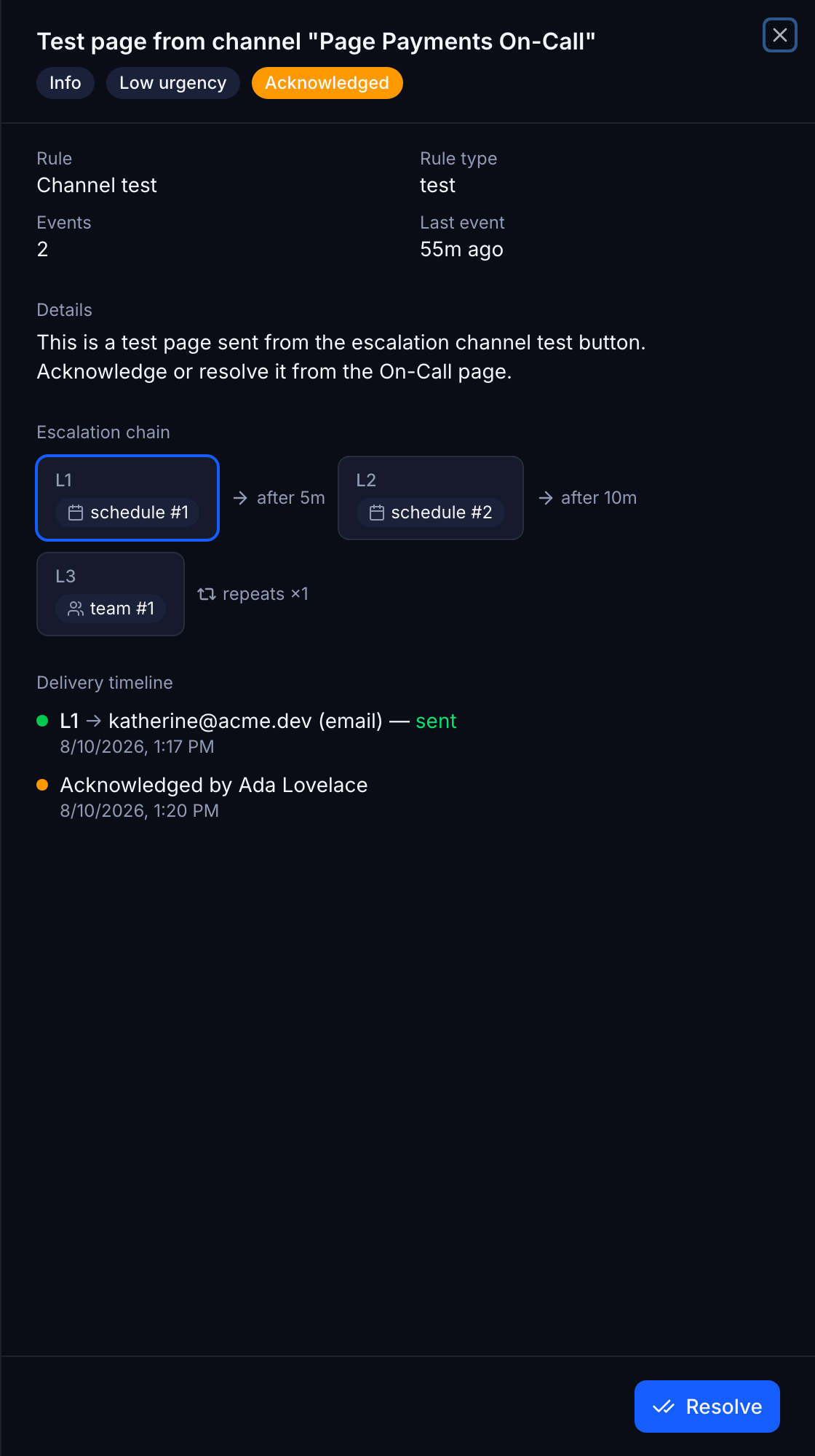
The detail view shows the escalation chain with the current level highlighted, and every delivery attempt with its outcome. That log is the thing to read when somebody says they never got paged.
Acknowledging without logging in
Every delivery addressed to a person carries its own single-purpose acknowledge link. Opening it shows a summary of the page. It does not require a session, so it works from a phone at 3am with no password manager in reach. Deliveries to a Channel target are the exception, since a shared Slack room has no single owner. Those carry the ordinary dashboard link instead.
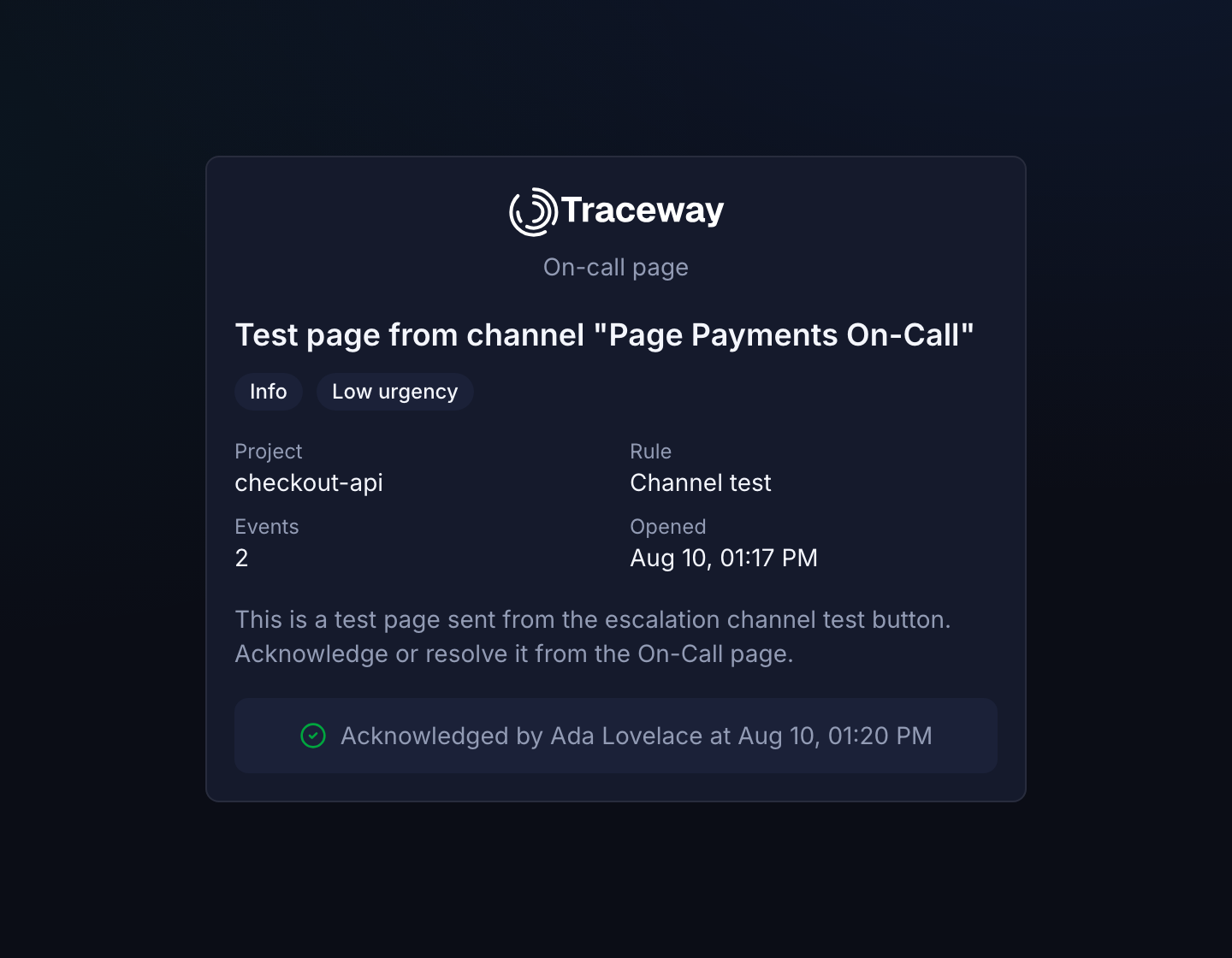
The link is scoped to acknowledging that one page and nothing else. It gives no dashboard access, cannot resolve, and stops working once the page is resolved. Opening the link is read-only, so an email scanner following links cannot acknowledge your incident by accident. The acknowledgement is attributed to whoever the delivery was addressed to, and the page records that it came in through a link rather than the dashboard.
Contact methods
Contact methods are personal. Each responder manages their own from the Account page, and nobody else can read or change them. The one thing teammates do see is a page's delivery log, which names the destination each notification went to so an incident can be debugged. Personal destinations are masked there: a phone number shows its last four digits, an email override shows its first character and domain. Your account email is shown in full, since everyone in the organization can already see it.
| Type | Configuration |
|---|---|
| Optional address. Leave it blank to use your account email. | |
| Slack | Incoming webhook URL, with optional channel and username overrides |
| Pushover | User key and app token |
| Telegram | Bot token and chat ID |
| SMS | Phone number in E.164 format, for example +12025550123 |
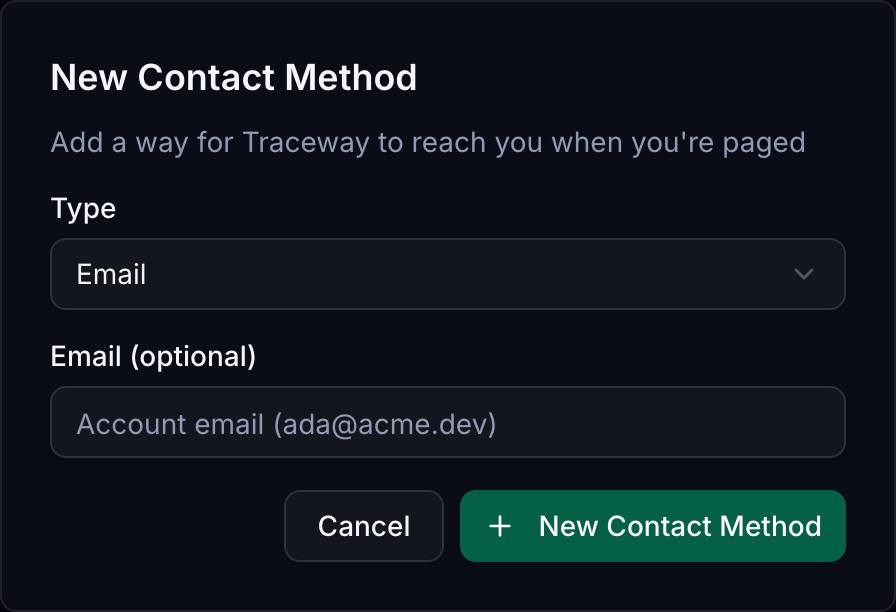
Every method has a Test button that sends a canned message, and an enable toggle so you can silence one without deleting it.
If you configure nothing at all, pages still fall back to your account email, so a responder is never silently skipped.
That fallback only leaves the building if the server can send mail. Set SMTP_ENABLED=true along with the rest of the SMTP settings. With SMTP off, Traceway runs the email adapter in log-only mode and writes the page to the server log instead of delivering it, which is fine for local development and a bad surprise in production. On a self-hosted instance, configure SMTP before you rely on on-call.
Slack webhooks and private addresses
Slack is the one contact method type where you choose the destination host yourself. Every other type sends to a fixed service, so only the Slack webhook URL is checked: it must use http or https and resolve to a public address. A URL whose host does not resolve is rejected too, since it could never receive a page.
The check exists because contact methods are personal. They need no project role, so without it any member of the organization, readonly included, could point a webhook at an internal address and use the Test button to send requests into the server's own network.
If your paging destinations genuinely live on a private network, for example a self-hosted Mattermost behind the same firewall as Traceway, set ALLOW_PRIVATE_NOTIFICATION_TARGETS=true on the server to turn the check off.
Project notification channels are not affected either way. The webhook channel type exists to post anywhere, and creating one requires write access.
SMS and Twilio
SMS needs Twilio credentials on the server. Set TWILIO_ACCOUNT_SID, TWILIO_AUTH_TOKEN, and one sender, either TWILIO_FROM_NUMBER or TWILIO_MESSAGING_SERVICE_SID.
Without them SMS is not offered at all. The type picker hides it, and the server rejects attempts to create one. This is deliberate. A channel that silently drops your 3am page is worse than no channel.
Phone numbers must be verified before they are paged. Adding one sends a six digit code, which expires after ten minutes and allows five attempts. Unverified numbers are never used for a real page, and the code send rate is capped per number so nobody can be flooded with codes.
Notification rules
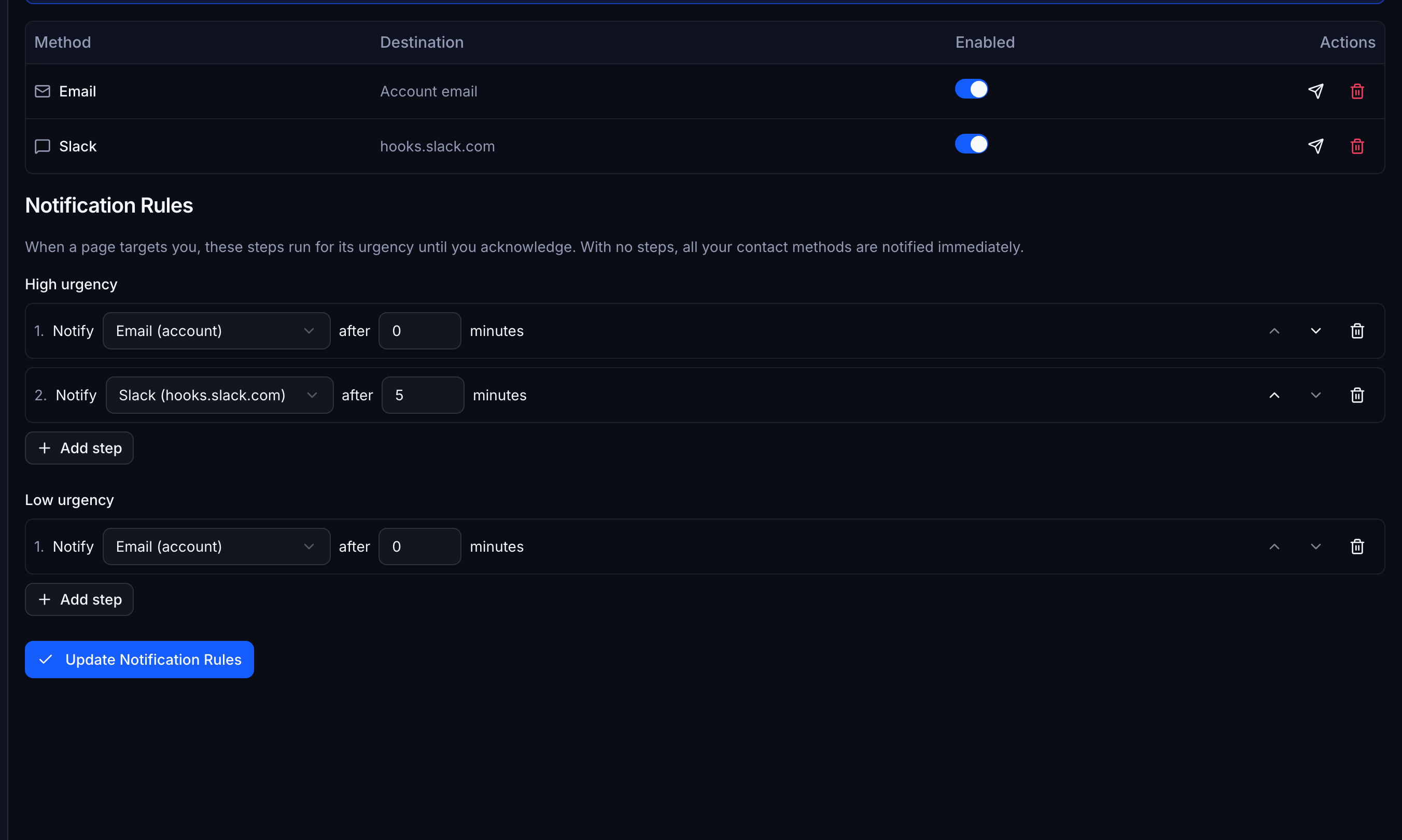
By default, a page notifies every enabled contact method at once. Notification rules replace that with an ordered chain per urgency.
Each step names one contact method and a delay in minutes. A typical high urgency chain nudges you quietly first, then gets louder:
| Step | Method | After |
|---|---|---|
| 1 | Slack | 0 minutes |
| 2 | Push notification | 2 minutes |
| 3 | SMS | 5 minutes |
The whole chain is scheduled the moment the page reaches you. Acknowledging cancels every step that has not fired yet, so taking the incident in the first thirty seconds means your phone never rings.
Low urgency usually deserves a shorter chain, often a single Slack message with no follow-up. Leave a chain empty to fall back to notifying every enabled method immediately.
Who is on call right now
The Overview tab answers that at a glance, per team and per schedule, with who is up next.
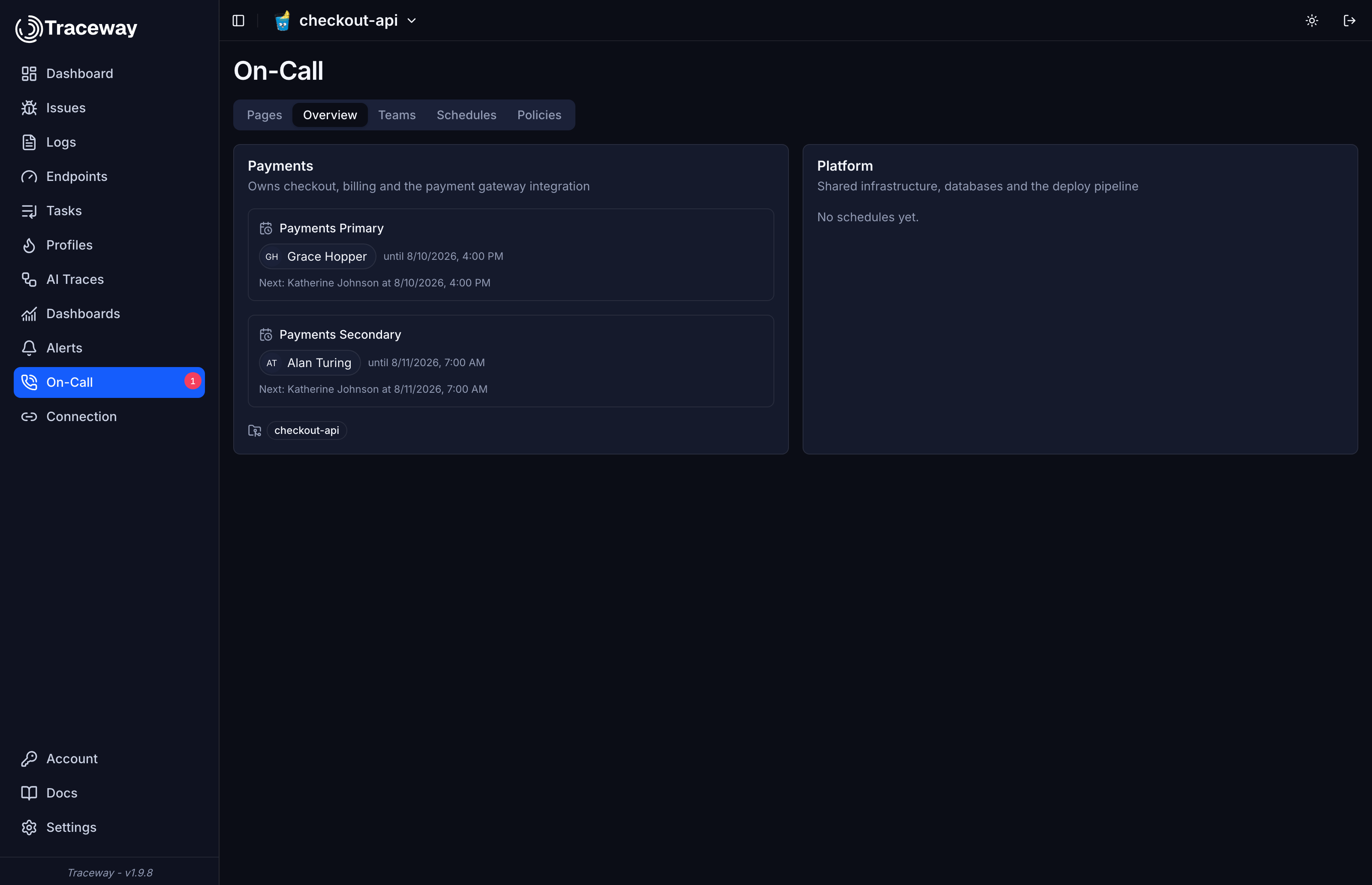
The issue detail page shows the same thing for the project you are looking at, so you know who to pull in without leaving the stack trace.
Common setups
One engineer, one rotation
The smallest useful configuration. One team, one schedule with a single weekly layer over everybody, one policy with a single step pointing at the schedule and a delay of 15 minutes. Set repeat to 1 or 2 so an unanswered page comes back around.
Business hours and out of hours
Two layers on one schedule. The first layer covers the working week and rotates over the whole team. The second covers nights and weekends and rotates over the smaller group that signed up for it. Restrictions on both keep them out of each other's way, and the second wins anywhere they overlap. This is the configuration in the screenshots above.
Primary and secondary
Two schedules on the same team, and a policy with two steps. Step one targets the primary schedule with a delay of five minutes. Step two targets the secondary. A third step targeting the whole team makes a decent last resort.
Loud for critical, quiet for the rest
Two policies. The critical one keeps urgency on Auto and escalates quickly. The other sets urgency to Always low with one step and a long delay, then each responder points their low urgency chain at Slack only. Attach noisy rules to the second policy and they will never ring a phone.
Vacation cover
Add an override for the dates. It beats the rotation without editing it, and it disappears on its own when the dates pass. There is no need to reshuffle the layer and remember to put it back.
Permissions
| Action | Required role |
|---|---|
| View teams, schedules, policies, and who is on call | Any member of the organization |
| Create or edit teams, schedules, and policies | Organization owner or admin |
| Create a schedule override | Any member of the organization |
| Delete a schedule override | Its creator, the person it covers, or an organization owner or admin |
| View, acknowledge, and resolve pages | Project read access, no write access needed |
| Manage your own contact methods and notification rules | Yourself only |
Delivery guarantees
Nothing is sent from inside the request that triggered it. A firing rule only opens the page, in its own transaction. The escalator then claims that page and, in a single transaction, advances the escalation level and writes every delivery for that level into a durable outbox. A separate worker drains the outbox and does the sending.
Because the level advance and the deliveries commit together, a crash mid-incident cannot lose a page or enqueue a level twice. Sending itself is at-least-once by design. A delivery interrupted between the send and the record of it is reclaimed about five minutes later and retried, so a crash at exactly the wrong moment can repeat one message. Paging twice is the right failure mode when the alternative is not paging at all.
Deliveries that fail are retried on a backoff of 1, 5, 15, and 60 minutes, up to five attempts, before being recorded as permanently failed and reported as an exception. Acknowledging cancels anything still queued, and a cancelled delivery can never come back to life, though a send already in flight may still land once.
The outbox block on /api/health/deep exposes queue depth and the oldest pending delivery, so you can alert on your alerting. It is an operator endpoint gated by the HEALTH_DEEP_TOKEN deploy secret (unset disables it).
Configuration
| Variable | Default | Purpose |
|---|---|---|
ONCALL_POLL_SECONDS | 30 | How often the escalator checks for pages that are due to escalate. Minimum 5. Kept separate from rule evaluation so raising that interval never delays paging. |
OUTBOX_POLL_SECONDS | 15 | How often the outbox drain worker sends queued notifications. Minimum 5. |
APP_BASE_URL | http://localhost:5173 | The origin used to build acknowledge links. Set it. The escalator sends from a background worker with no request to derive an origin from, so if this is unset every page links to localhost. |
TWILIO_ACCOUNT_SID | unset | Twilio account SID, required for SMS |
TWILIO_AUTH_TOKEN | unset | Twilio auth token, required for SMS |
TWILIO_FROM_NUMBER | unset | Sending number. Use this or a messaging service. |
TWILIO_MESSAGING_SERVICE_SID | unset | Twilio messaging service, as an alternative to a from number |
ALLOW_PRIVATE_NOTIFICATION_TARGETS | unset | Set to true to let personal contact methods point at private or loopback addresses. Off by default so a contact method, which needs no project role, cannot be used to reach the server's own network. |
SMTP_ENABLED | unset | Must be true for email pages to be delivered. Anything else runs the email adapter in log-only mode. |
A freshly opened page does not wait for the next poll. The escalator is woken directly, so the first level is notified within a second or so regardless of ONCALL_POLL_SECONDS.
Limits
| Thing | Limit |
|---|---|
| Steps per escalation policy | 10 |
| Targets per step | 10 |
| Delay between steps | 1 to 1440 minutes |
| Policy repeats | 5 |
| Steps per notification rule chain | 10 |
| Delay per notification rule step | 0 to 120 minutes |
| Override duration | 30 days |
| Timeline range per request | 62 days |