Incidents & Post-Mortems
When a monitor goes down, Traceway opens an incident and shows it on your public status page. This page is about what you do next: tell your users what is happening while the outage lasts, record an outage that no monitor caught, and write the internal post-mortem once it is over. All of it is under Monitors in the sidebar.
| What you do | Who | When | |
|---|---|---|---|
| 1 | Open the incident history of your status page | An organization owner or admin | When an incident opens |
| 2 | Name the incident and post updates | An organization owner or admin | During the outage |
| 3 | Write the post-mortem | Anyone with write access to the project | After it is resolved |
| or | Record an incident by hand when no monitor caught the outage, then go on with step 2 | An organization owner or admin | When you need it |
You need a monitor and a status page that includes it. Monitors shows how to set up both.
Step 1: Open the incident history
Incidents are managed per status page. The incident history of a status page lists every incident of the monitors on that page, and the incidents recorded on it by hand.
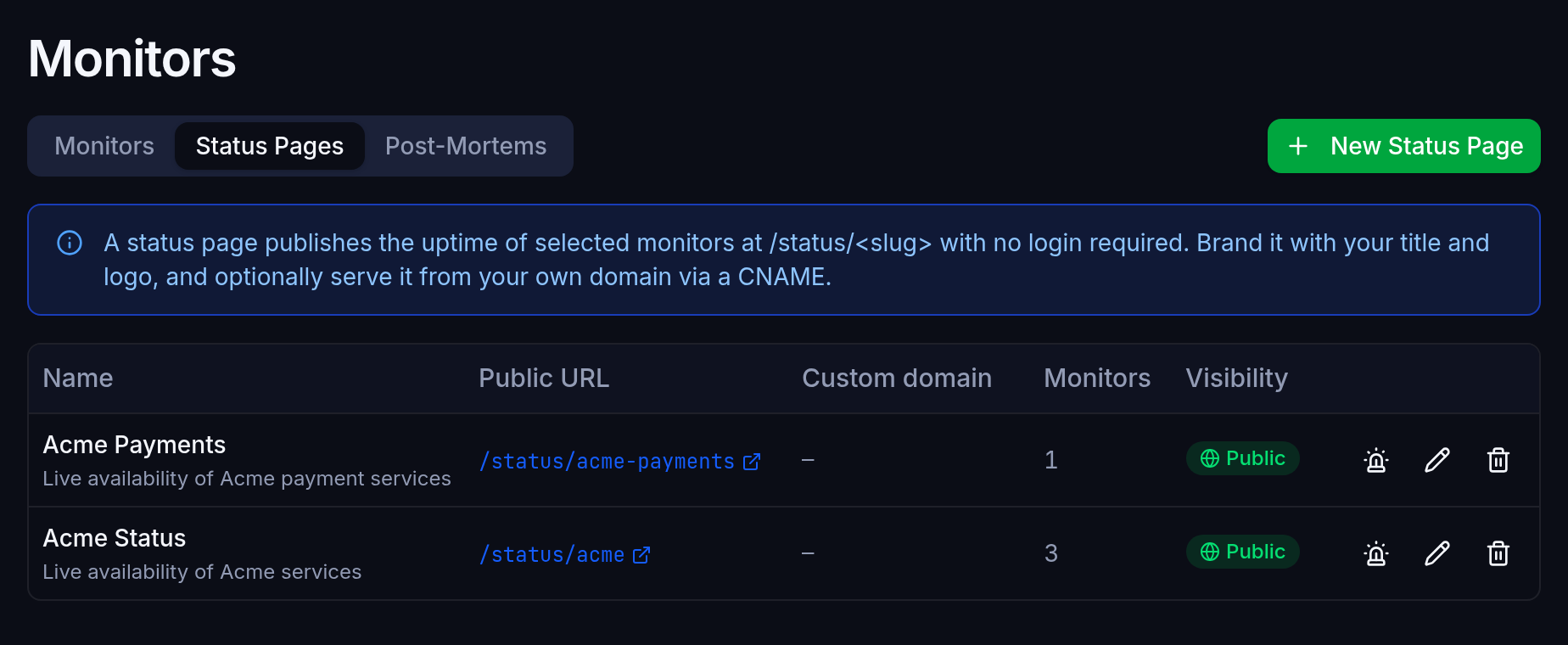
- Open Monitors in the sidebar and switch to the Status Pages tab. Only owners and admins see this tab.
- In the row of your status page, click the Incidents icon. It is the first of the three icons at the end of the row.
The page Incidents · <status page name> opens with the newest incident first. An incident that a monitor opened shows the monitor's name under its title, and one that was recorded by hand shows manual. Each is marked Ongoing or Resolved.
Step 2: Name the incident and post updates
A new automatic incident is public with the title "<monitor name> is down" and a single Investigating entry. That tells your users very little, so give it a title they understand and add to the timeline as you learn more.
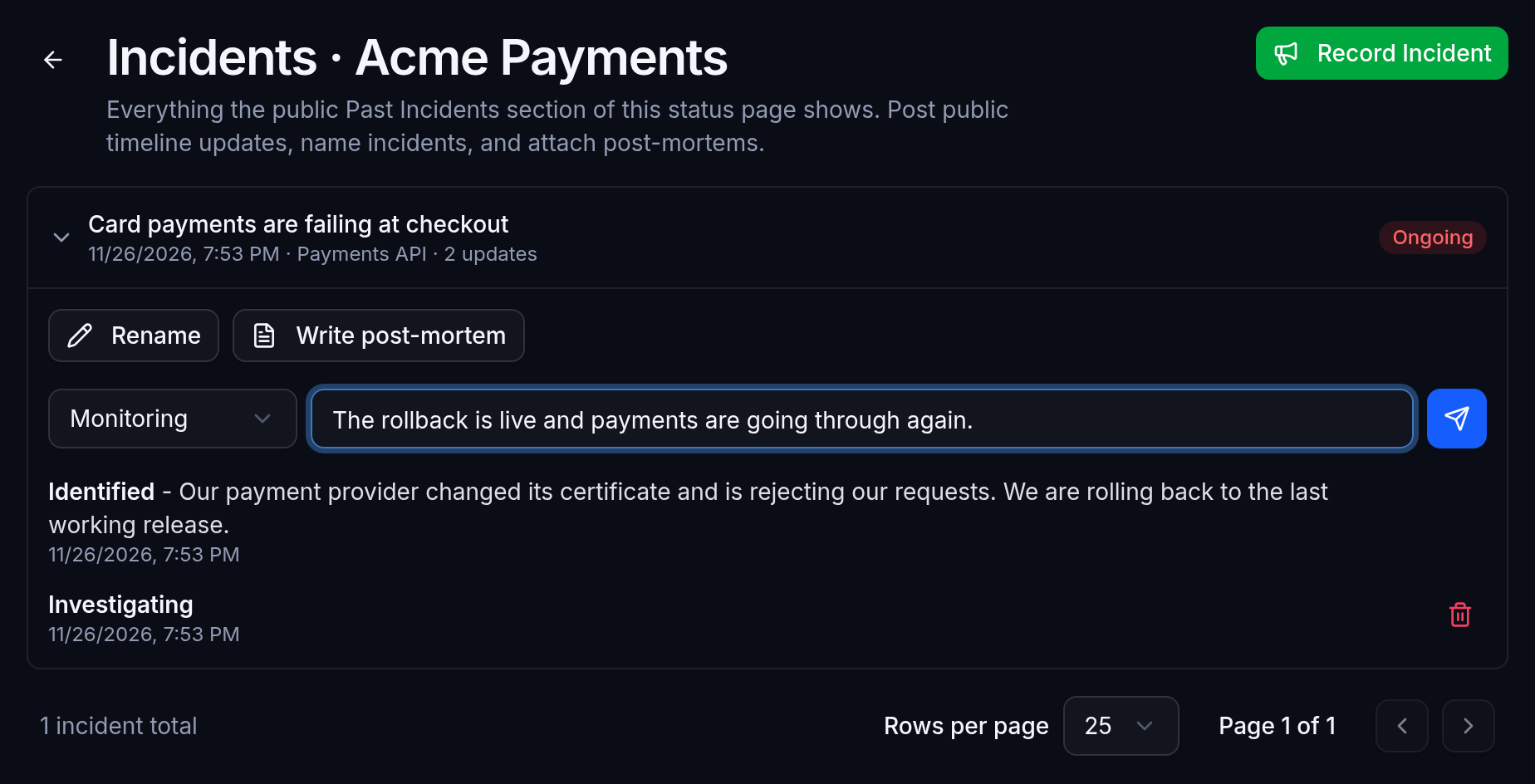
- Click the incident to expand it.
- Click Rename (it reads Set title while the incident has no title of its own), type a title such as "Card payments are failing at checkout", and click Save.
- Pick a status in the dropdown, type the message, and press Enter or click the send button.
The statuses are the ones your users know from other status pages:
| Status | Use it when |
|---|---|
| Investigating | You know something is wrong and are looking for the cause |
| Identified | You know the cause and are working on the fix |
| Monitoring | The fix is out and you are watching whether it holds |
| Update | You have anything else to say, also after the incident is over |
| Resolved | The incident is over |
The message can be left empty to post the status alone. To take an update back, hover over it and click the trash icon.
You do not close an automatic incident yourself. It resolves when the monitor recovers, and Traceway adds the Resolved entry to the timeline. That is why Resolved is missing from the dropdown while the monitor is still down. Once the incident is resolved you can keep posting, for example a closing note.
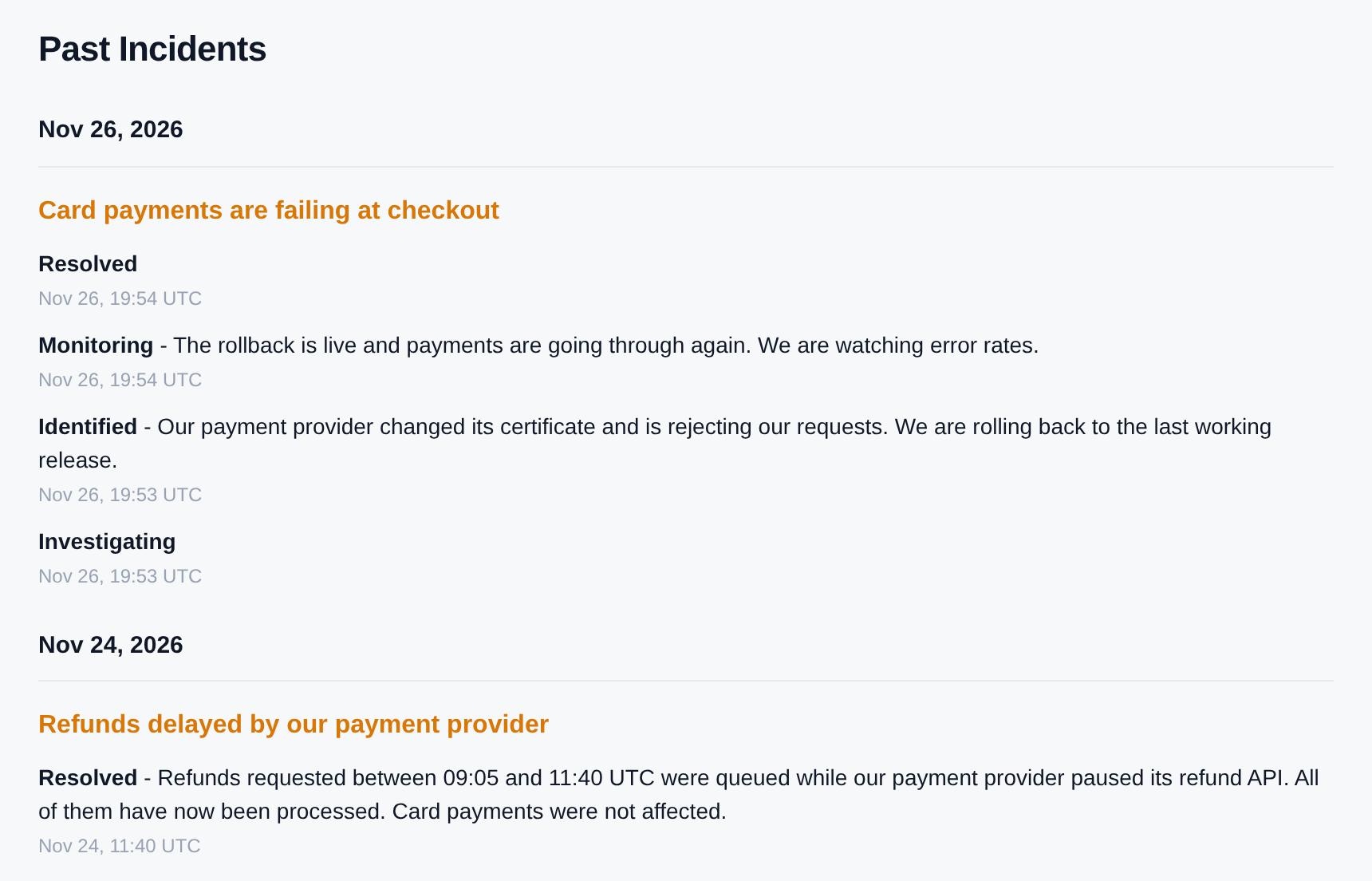
Every change is on the public status page the next time it loads, in the Past Incidents section:
Step 3: Write the post-mortem
A post-mortem is the internal write-up: what happened, why, and what you change. It belongs to the project, every member with access to the project can read it, and it never appears on a status page.
- In the expanded incident, click Write post-mortem.
- Enter a title and click New Post-Mortem. The document is created right away, linked to the incident, and the editor opens.
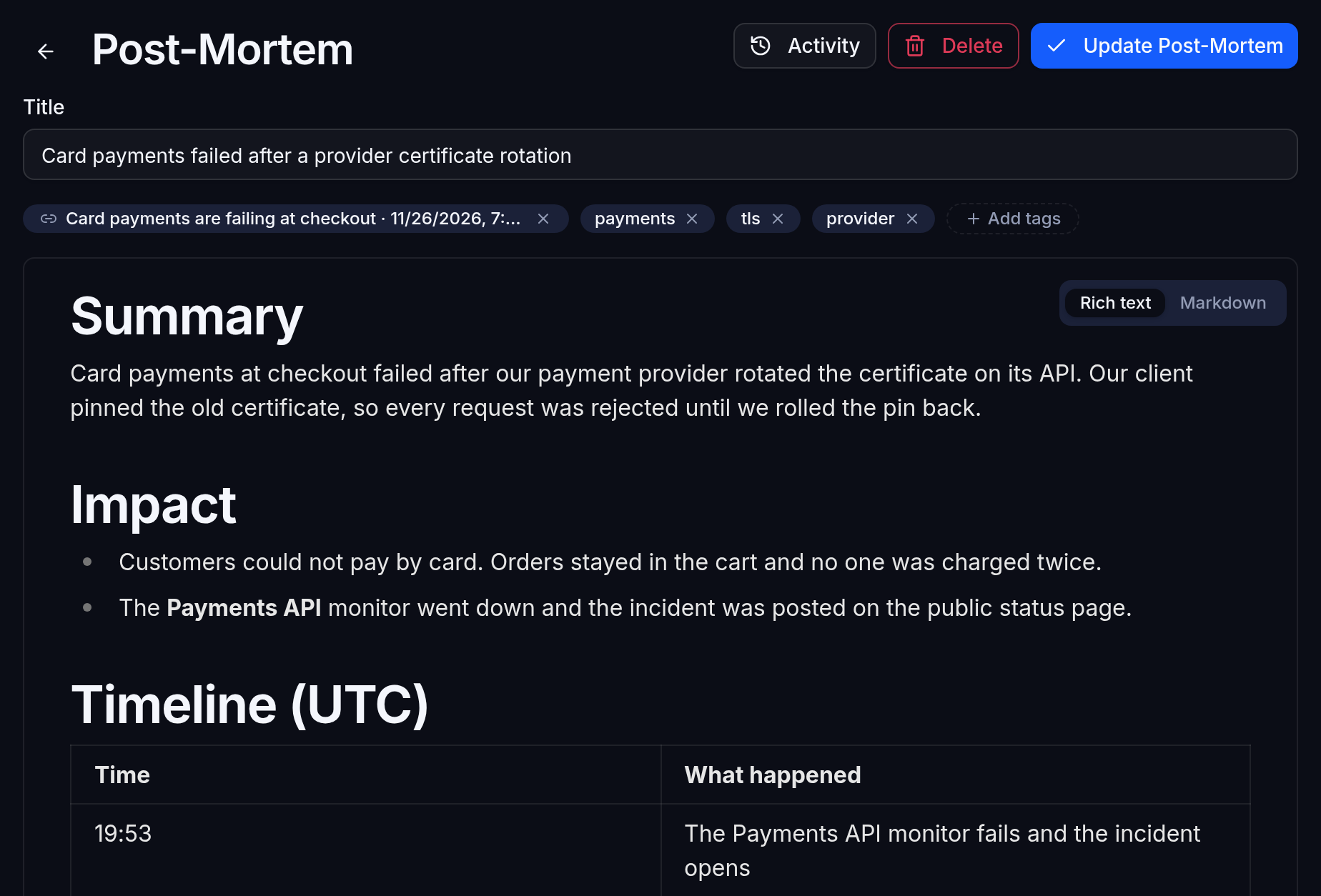
- Write the document. Select text to get the formatting toolbar, or type
/to insert a heading, list, table, code block or quote. Markdown at the top right of the editor shows the raw Markdown, which is the quickest way to paste a document you already have. Rich text switches back. Both edit the same content. - Click Add tags, type a tag such as
payments, press Enter, and repeat for each tag. Then click Apply Tags. - Click Update Post-Mortem. Nothing is saved before that, including the tags.
The incident now shows View post-mortem in the incident history, and a Post-mortem link on the monitor's page.
There are two other places to start one. Members who are not owners or admins do not see the Status Pages tab: they open the monitor and use Write post-mortem in its Incidents card. For a write-up that belongs to no incident, click New Post-Mortem on the Post-Mortems tab.
Alternative: record an incident by hand
Monitors do not catch everything. Record an incident yourself for an outage they missed, or for an event such as a maintenance window. This replaces the automatic opening. Afterwards the incident takes updates and a post-mortem like any other.
- Open the incident history as in step 1 and click Record Incident.
- Enter a Title. It is required and public.
- Optionally write the First update, the message of the first timeline entry.
- Started at is set to now. Move it back if the outage began earlier.
- If the outage is already over, tick Already resolved (recording it after the fact) and set Resolved at.
- Click New Incident.
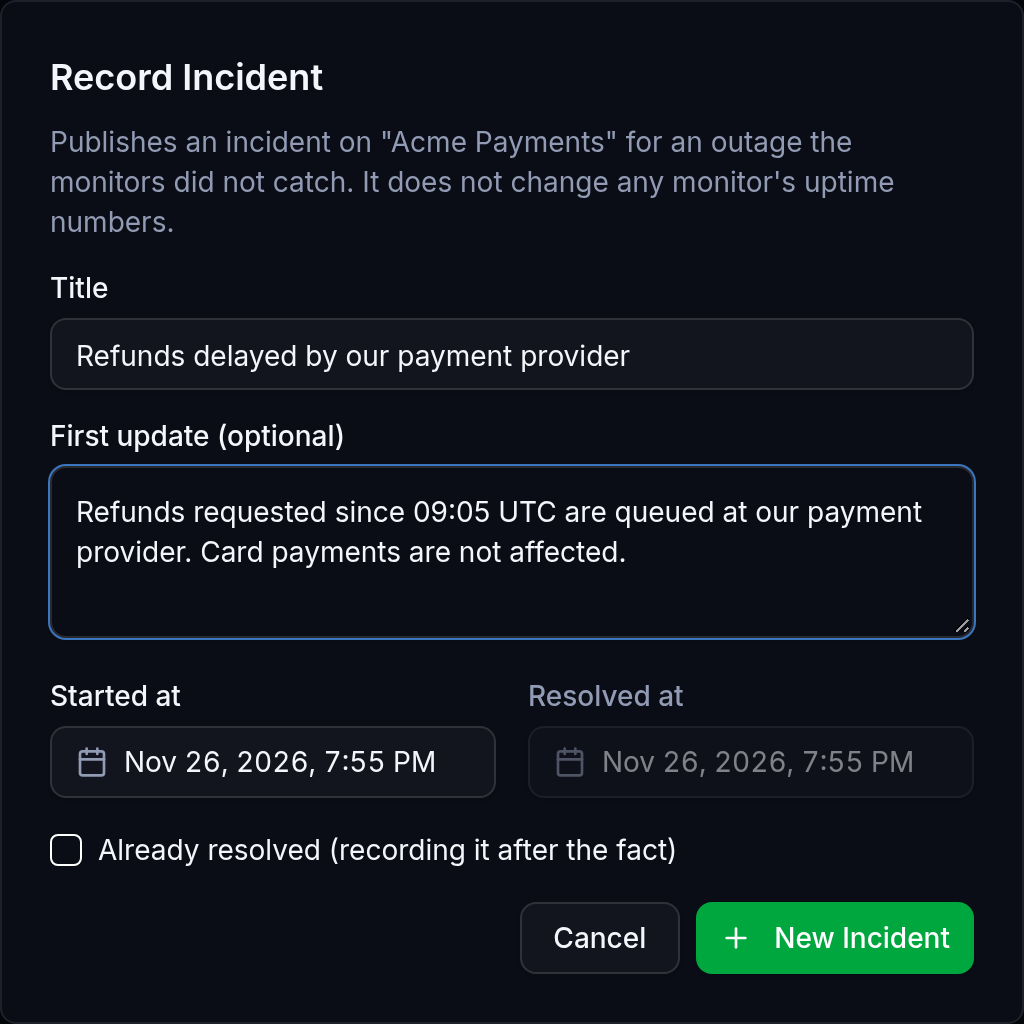
The incident is on the status page at once. If it is still open, its timeline starts with Investigating and your message, and you close it with the Resolve button or by posting a Resolved update. If you recorded it as already resolved, it has one Resolved entry with your message.
Resolving an incident later ends it at that moment. Once it is recorded, the dashboard cannot change its start or end time, and it cannot reopen a resolved incident. To correct one, delete it and record it again.
Only an incident recorded by hand has a Delete button. Deleting it removes the incident and its updates from the status page and keeps a linked post-mortem.
Work with post-mortems
Find one again
The Post-Mortems tab lists the documents of the current project. The search box matches titles, content and tags, so "certificate" finds the write-up even when the title never mentions it. Click a tag in the list to filter by it. Several tags narrow the list to the documents that carry all of them.
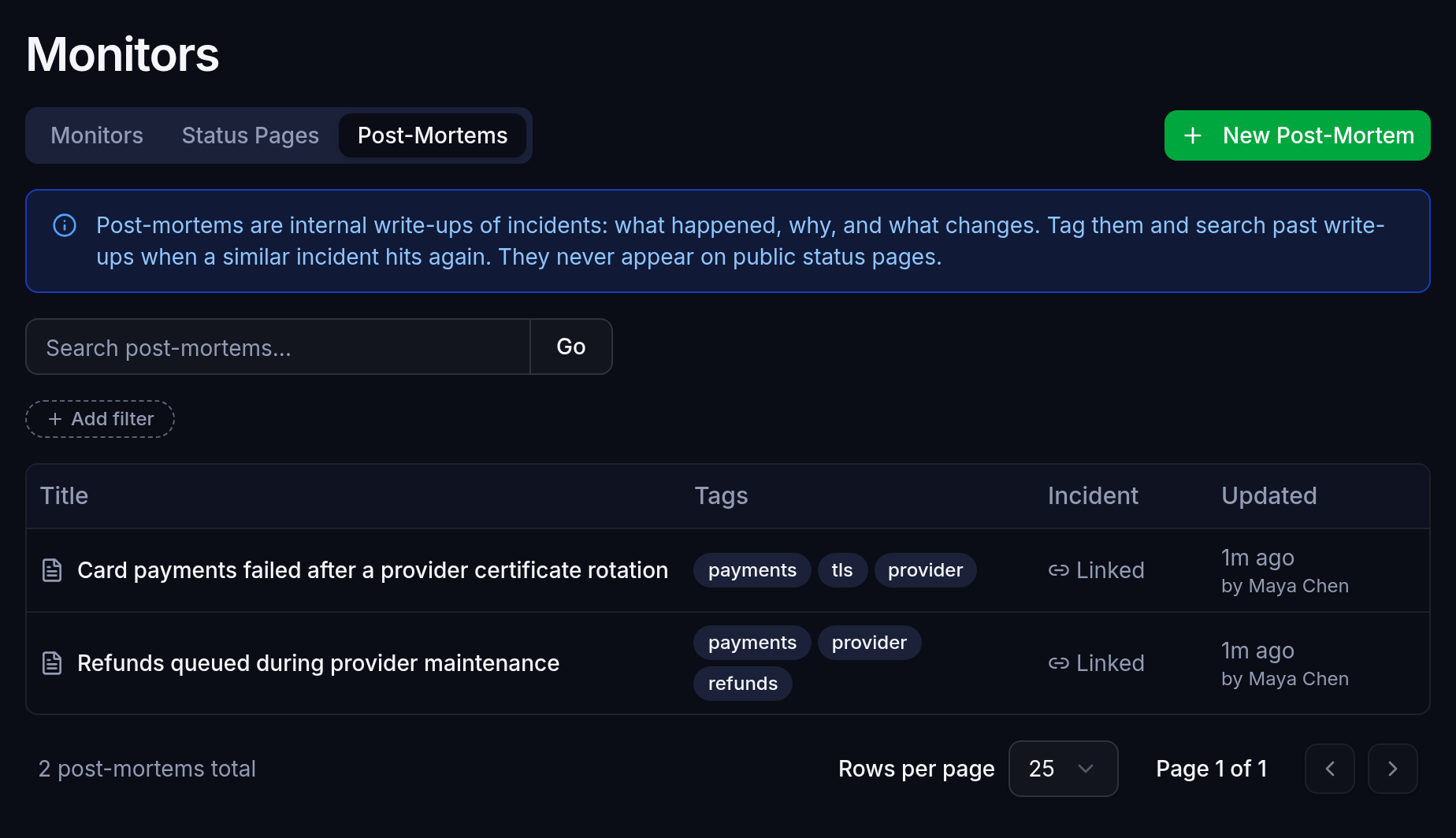
A post-mortem is only found in the project it was written in. Opened under another project, it answers "Post-mortem not found".
Change the incident link
Under the title, the first pill is the linked incident. Click the ✕ on it to unlink. On a document without a link, click Link incident and pick from the incidents of the last 90 days: those of the project's own monitors, and those recorded by hand on any status page of the organization. An incident can have one post-mortem, so incidents that already have one are not listed. Save with Update Post-Mortem.
Deleting an incident or its monitor does not delete the post-mortem. It only loses its link.
See who changed it
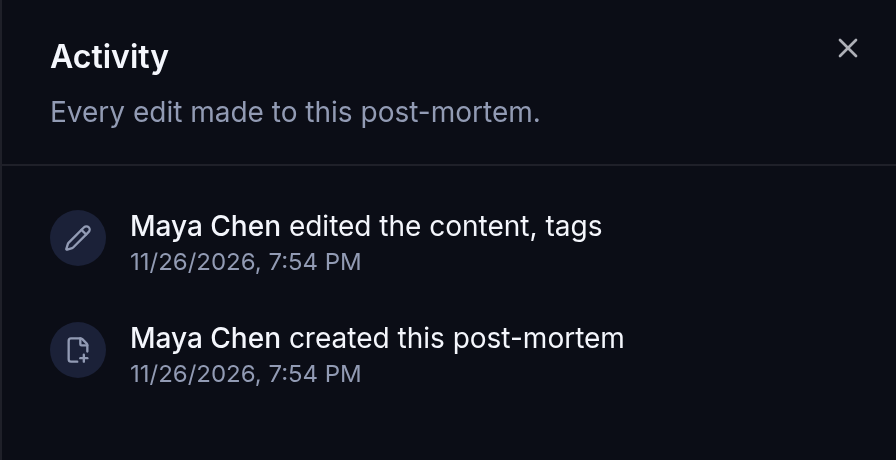
Activity at the top of the document lists every edit: who created it, who edited it, when, and what changed (title, content, tags or incident link). A save that changes nothing is not recorded.
How incidents work
An incident is a span of time in which something was down, with a public story attached: a title and a timeline of updates. There are two kinds.
| Automatic | Recorded by hand | |
|---|---|---|
| Opened by | A monitor that crosses its failure threshold | An owner or admin, with Record Incident |
| Closed by | The monitor recovering | The Resolve button or a Resolved update |
| Start and end time | Set by the monitor | Set by you when you record it |
| Can be deleted | No | Yes |
| Belongs to | The monitor and its project | The status page |
Automatic incidents need no configuration. Every time a monitor goes down or recovers, the incident and its Investigating or Resolved entry are written for you, and the incident shows on every status page that includes the monitor. Its lifecycle belongs to the monitor: you cannot resolve, re-time or delete it by hand.
An incident recorded by hand only feeds the incident history and the public Past Incidents section. It never changes a monitor's uptime numbers.
What is public
The public status page shows the title and the timeline of each incident: status, message and time. Past Incidents covers the last 90 days, newest first and grouped by day, up to the 30 most recent incidents. Anyone with the link can read it without logging in.
The probe's error message stays internal. You see it on the monitor's page, next to the incident, and it is never sent to the status page. Post-mortems are internal too.

Where you see incidents
| Place | What it shows |
|---|---|
| Status Pages tab, Incidents icon | The full history of one status page, with paging. The only place to rename incidents, post updates and record incidents by hand |
| A monitor's page | The incidents of that monitor, with the error message and the post-mortem link |
| Organization Overview | The incidents of every project in the organization |
| The public status page | Past Incidents: titles and timelines only |
Post-mortems from the CLI or an AI agent
The CLI and the MCP server read post-mortems, and the write CLI and write MCP server create and edit them.
# Find and read
traceway post-mortems list --search certificate --tag payments
traceway post-mortems show <id>

# The incident ids of a monitor, for --incident
traceway monitors show <monitor-id>

# Create and edit (the write CLI)
traceway-write post-mortems create --title "<title>" \
  --content-file draft.md --tag payments --incident <incident-id>
traceway-write post-mortems update <id> --content-file revised.md \
  --expected-updated-at <updatedAt>
update changes only what you pass: --title, --tag (replaces all tags), --incident, --unlink-incident or --content-file. When it replaces the body, give it the updatedAt you got from post-mortems show. If someone saved the document in the meantime, the update fails with a conflict and overwrites nothing.
The MCP tools are list_post_mortems and get_post_mortem, and on the write server create_post_mortem and update_post_mortem. Writing needs Agent Write Access turned on for the organization. With it, you can ask your agent for the first draft:
/traceway-write Write a post-mortem for this morning's payments
outage. Take the timeline from the monitor incident and the
slowest traces. Show me the draft before you save it, and tag
it payments.
Incident titles, public updates and incidents recorded by hand are not open to the CLI or to agents. They are public content, so they stay in the dashboard.
Who can do what
| Action | Who |
|---|---|
| Read incidents and post-mortems | Every organization member, including readonly |
| Create, edit and delete post-mortems | Members with write access to the project. A per-project readonly override counts |
| Record incidents, rename them, post and delete updates, resolve and delete incidents recorded by hand | Organization owners and admins, because this is public content |
Limits
| What | Limit |
|---|---|
| Incident title | 200 characters |
| Update message | 2,000 characters |
| Public Past Incidents | The last 90 days, at most 30 incidents |
| Post-mortem title | 200 characters |
| Post-mortem body | 200 KB of Markdown |
| Tags | 20 per post-mortem, 50 characters each, saved in lower case |
| Post-mortems per incident | One |
When it fails
| What you see | Cause | Fix |
|---|---|---|
| No Status Pages tab | You are not an owner or admin of the organization | Ask one, or read the incidents on the monitor's page |
| No Resolved in the status dropdown | The incident is automatic and its monitor is still down | It resolves when the monitor recovers |
Title is required. | The title is empty. An incident recorded by hand and a post-mortem cannot be without one | Enter a title |
Resolved at must not be before started at. | The end time in Record Incident is earlier than the start | Correct one of the two times |
This incident already has a post-mortem. | You linked an incident that another post-mortem covers | Open that post-mortem with View post-mortem, or unlink it there first |
The linked incident belongs to a different project. | The incident comes from a monitor of another project | Write the post-mortem in that project |
| "No incidents found" in Link Incident | Every recent incident has a post-mortem, is older than 90 days, or belongs to another project | Start from Write post-mortem on the incident instead |
| "Post-mortem not found" | The document belongs to a different project than the one selected | Switch to its project |
Content must be 200KB or smaller. | The Markdown is over the limit | Shorten it, or move logs and long output elsewhere and link to them |
The post-mortem was changed since it was read. | --expected-updated-at is older than the saved document | Run post-mortems show again and reapply your change |