Set up remote config (Beta)
beta tag: npm install @tracewayapp/frontend@beta (or react@beta, vue@beta, svelte@beta, jquery@beta). A plain npm install still installs the stable 1.x SDK, which does not poll for remote settings. Options, defaults and the settings document can change before 2.0 is stable.This page takes a browser app from install to its first rule, trigger and capture. How the pieces fit together is on Remote SDK Config; every field of the settings document is in the settings reference.
You need @tracewayapp/frontend 2.x (beta), or the React, Vue, Svelte or jQuery wrapper of the same version, and a React, Vue, Svelte or jQuery project in Traceway. The Data Collection tab is only shown for those project types.
Install and initialize the SDK
npm install @tracewayapp/frontend@betaFor a framework wrapper, install @tracewayapp/react@beta, @tracewayapp/vue@beta, @tracewayapp/svelte@beta or @tracewayapp/jquery@beta instead. Without @beta, npm installs the stable 1.x SDK, which never polls for settings.
import * as Traceway from "@tracewayapp/frontend";

Traceway.init("<project-token>@https://traceway.example.com", {
  serviceName: "shop-web",        // service.name, defaults to the page's host name
  version: "2.4.1",               // service.version: rules target releases with it
  environment: "production",      // deployment.environment.name
  propagateTraceHeaderCorsUrls: [/api\.example\.com/], // traceparent on your cross-origin API calls
});
That is all remote config needs: it is on by default (remoteConfig: true). The SDK polls for its settings right away and starts on the defaults until the first answer arrives; on later pages it starts with the settings it applied last.
Set version and environment. They are what most rules target, and without them you cannot tell a canary from production.
The React, Vue, Svelte and jQuery wrappers take the same options. The React, Vue and Svelte wrappers re-export every function used below (setAttribute, refreshConfig, track, recordAction, getInstanceId, ...). The jQuery wrapper (TracewayJQuery on the CDN) re-exports the same functions except recordAction (as of 2.0.0-beta.1): use track() there.
Decide what the page may never send
The capture*, sessionRecording and sessions options are ceilings. A rule can switch a signal off or keep it on the device, but it can never turn on what init() turned off, and neither can a trigger or a capture.
Traceway.init(connection, {
  version: "2.4.1",
  sessionRecording: false, // no replay on this app, whatever the dashboard says
  captureLogs: false,      // console lines never leave the page
});| Option | Ceiling for |
|---|---|
sessionRecording | Session replay |
captureLogs | console.* |
captureNetwork | fetch and XHR spans |
captureNavigation | Route changes |
captureUserActions | Clicks |
captureWebVitals | Web vitals |
captureResourceTiming | Resource and navigation timing |
sessions | Session start and end events |
All of them default to true. Use them for data your app must never collect, such as console output that could carry personal data.
Identify users and name your events
Rules and captures can only target what the browser reports. Set the user once they sign in, then ask for the settings that apply to them right away instead of at the next poll:
Traceway.setAttribute("user.id", user.email);
await Traceway.refreshConfig();
Any global attribute works for targeting (setAttribute("tenant.id", "acme"), setAttribute("plan", "enterprise")). Name the moments that matter, so triggers can react to them:
Traceway.track("checkout_failed", { step: "payment" });
Traceway.recordAction("cart", "add_item", { sku: "CHAIR-1" }); // not in the jQuery wrapper: use track() there
Open the Data Collection tab
In the dashboard, open the project's settings (project switcher → Edit Project) and choose Data Collection.
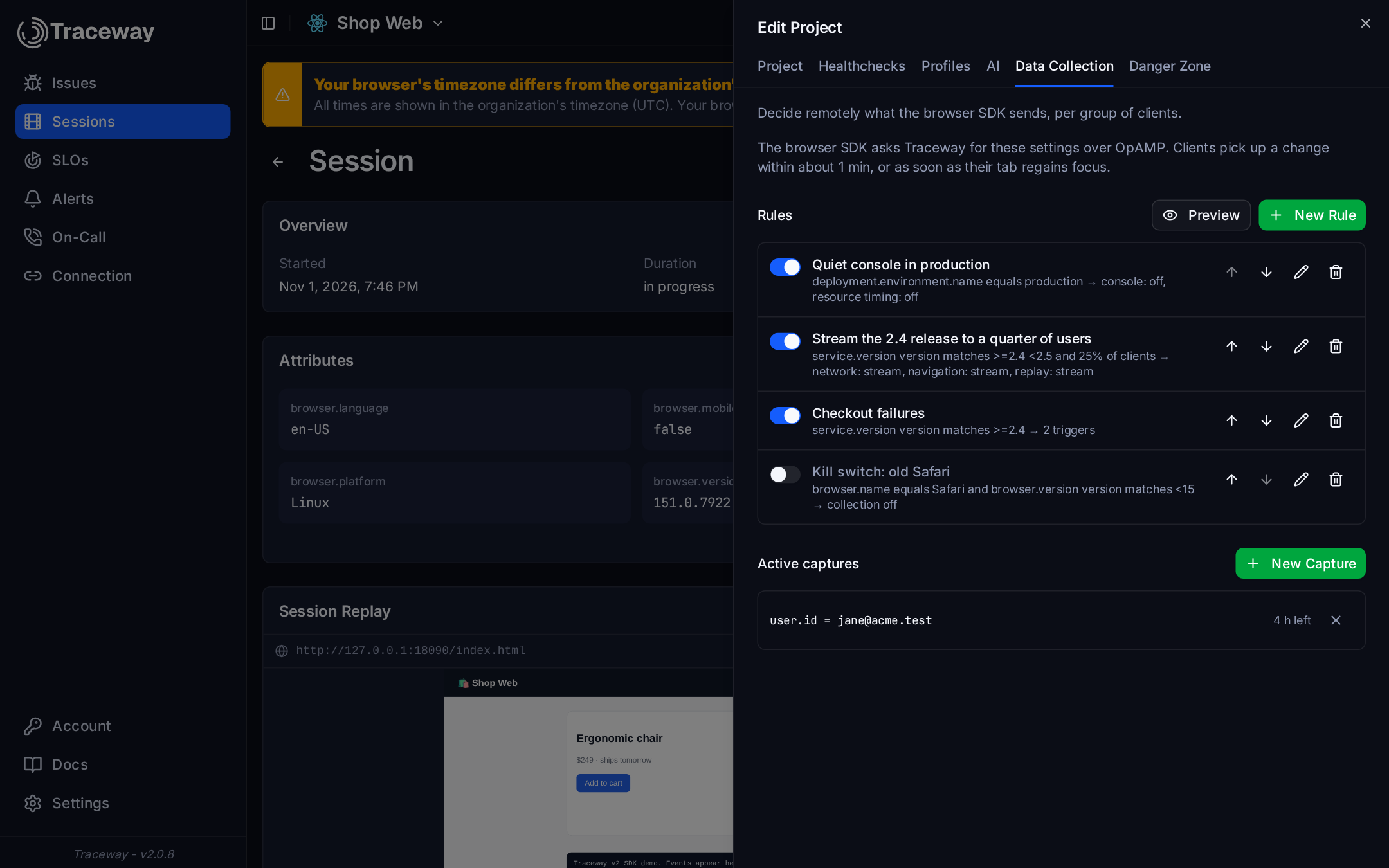
The rules apply top to bottom, and a later rule wins where two set the same field. Each row shows who it targets and what it changes; the switch turns a rule off without deleting it. Below the rules are the active captures, with the time they have left.
Create a rule
Click New Rule. A rule has three parts:
- Applies to: conditions over the attributes clients report, all of which must hold. No condition matches every client. Useful keys:
service.version,deployment.environment.name,browser.name,browser.version,os.name,user.id, and anything your app sets withsetAttribute. Operators include equals, is one of, contains (also case-insensitive), starts with, matches pattern (*and?), version matches (>=2.4 <3), greater or less than a number (>,≥,<,≤), is set and is not set. - Roll out to: the share of matching clients the rule applies to. Each browser profile lands in a fixed bucket per rule, so the same clients stay in as you raise the percentage.
- Settings: for each signal, Inherit (keep what earlier rules and the defaults say), Off, Buffer or Stream; plus session replay, session events and the kill switch.
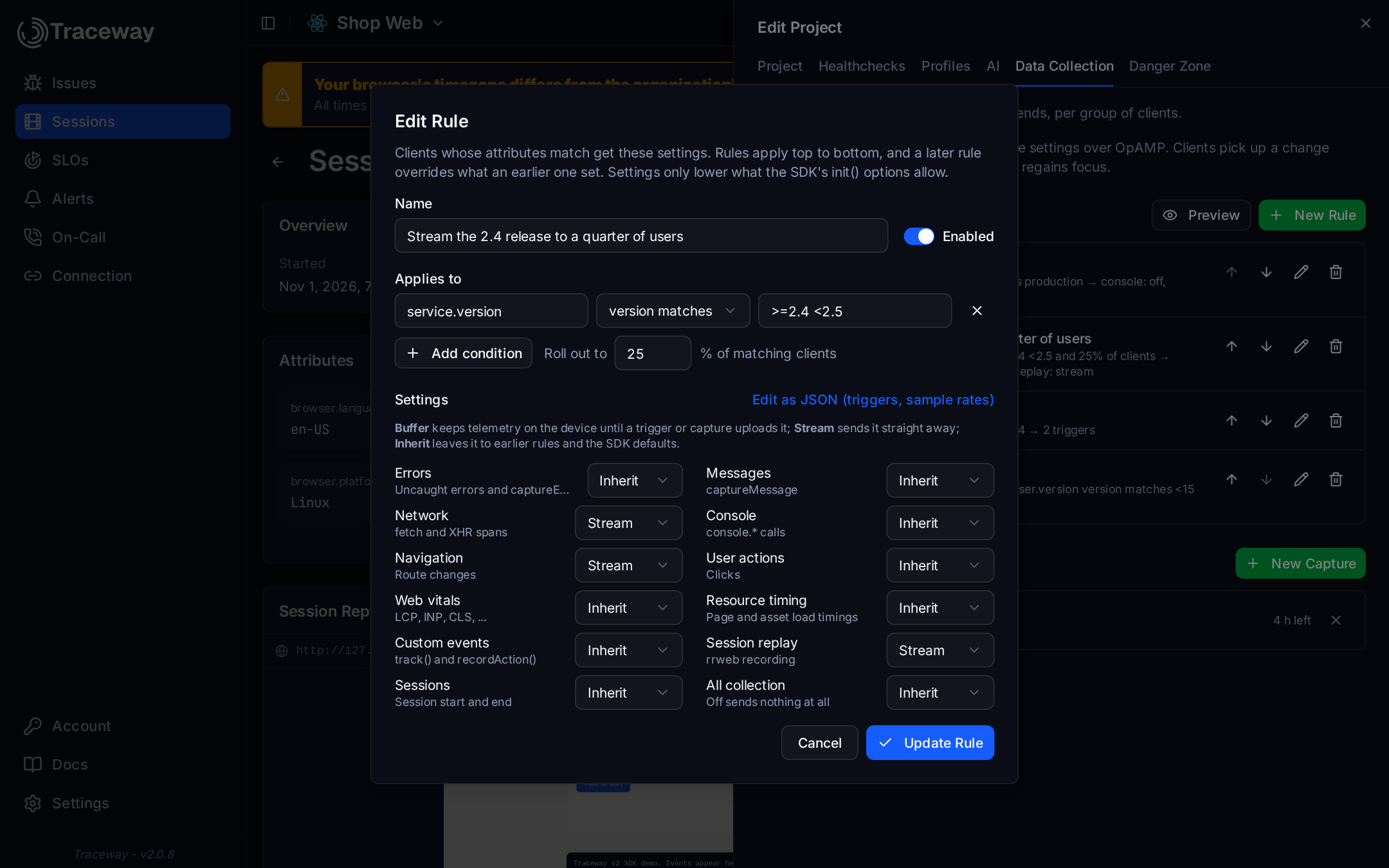
Three rules that cover most needs:
| Rule | Applies to | Settings |
|---|---|---|
| Quiet console in production | deployment.environment.name equals production | Console: Off |
| Watch the 2.4 release closely | service.version version matches >=2.4 <2.5, rolled out to 25% | Network, Navigation, Session replay: Stream |
| Kill switch for old Safari | browser.name equals Safari and browser.version version matches <15 | All collection: Off |
Saving a rule takes effect on each matching browser at its next poll (5 minutes by default) or when its tab becomes visible after the polling interval has elapsed.
Add a trigger
Triggers decide what leaves the device when something goes wrong. In the rule dialog, Add a trigger offers templates:
| Template | What it does |
|---|---|
| Error clip | On an exception, upload the last 10 minutes of buffered breadcrumbs and a 30-second replay clip (at most every 5 seconds, 20 times per session) |
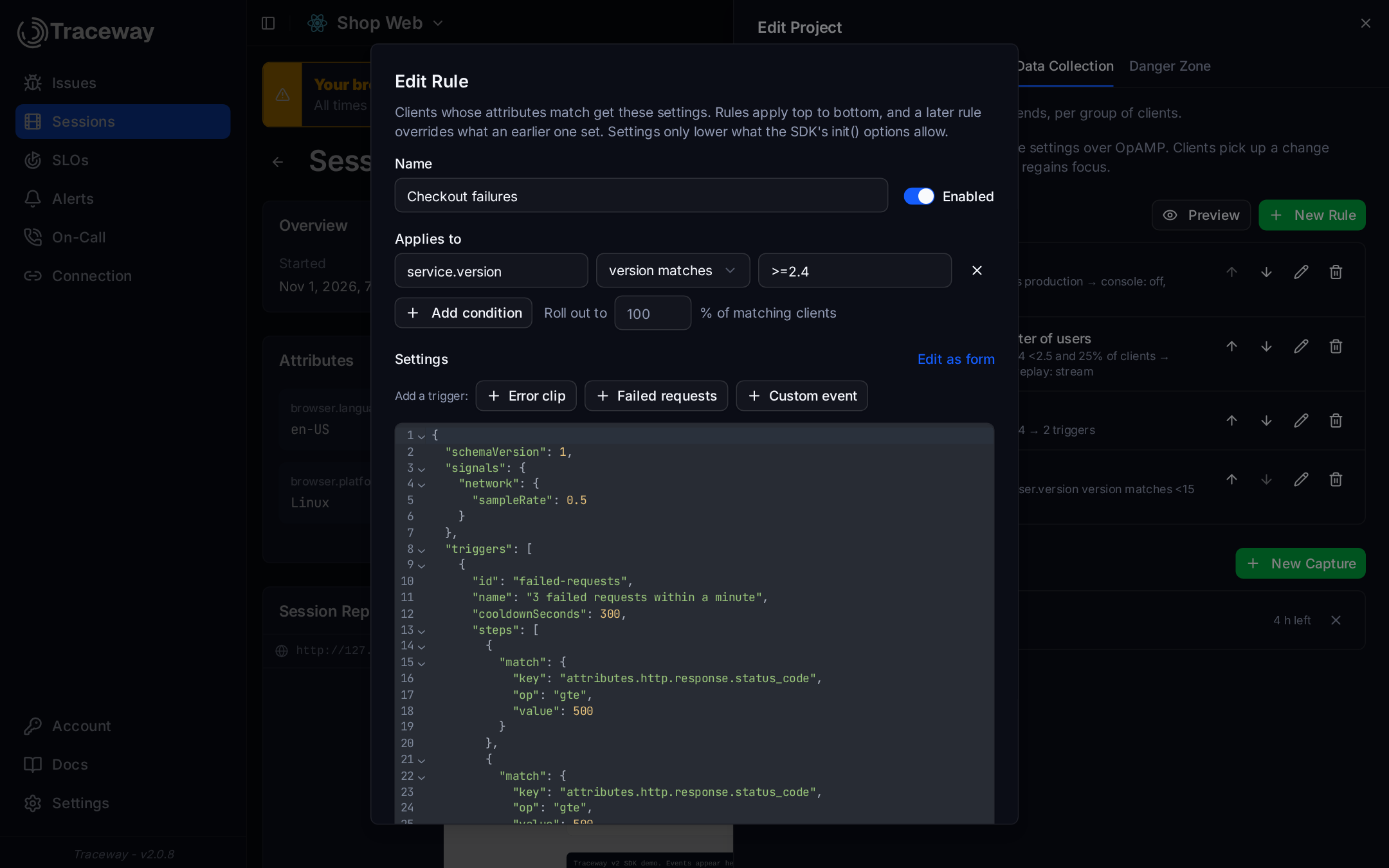
| Failed requests | After 3 responses of 500 or more within a minute, upload the last 2 minutes and stream for 5 |
| Log line → capture | When a log line contains a text, capture this device for a while |
| Error log burst → capture | After 5 error-level log lines within a minute, capture this device |
| Custom event | When the app calls track("checkout_failed"), upload what led to it |
For log lines there is a builder: Capture when a log line appears. Choose how to match (contains, any case; matches a pattern with * and ?; starts with), the minimum level, how many times within how long, how long to capture, how far back to upload, and whether to include replay.
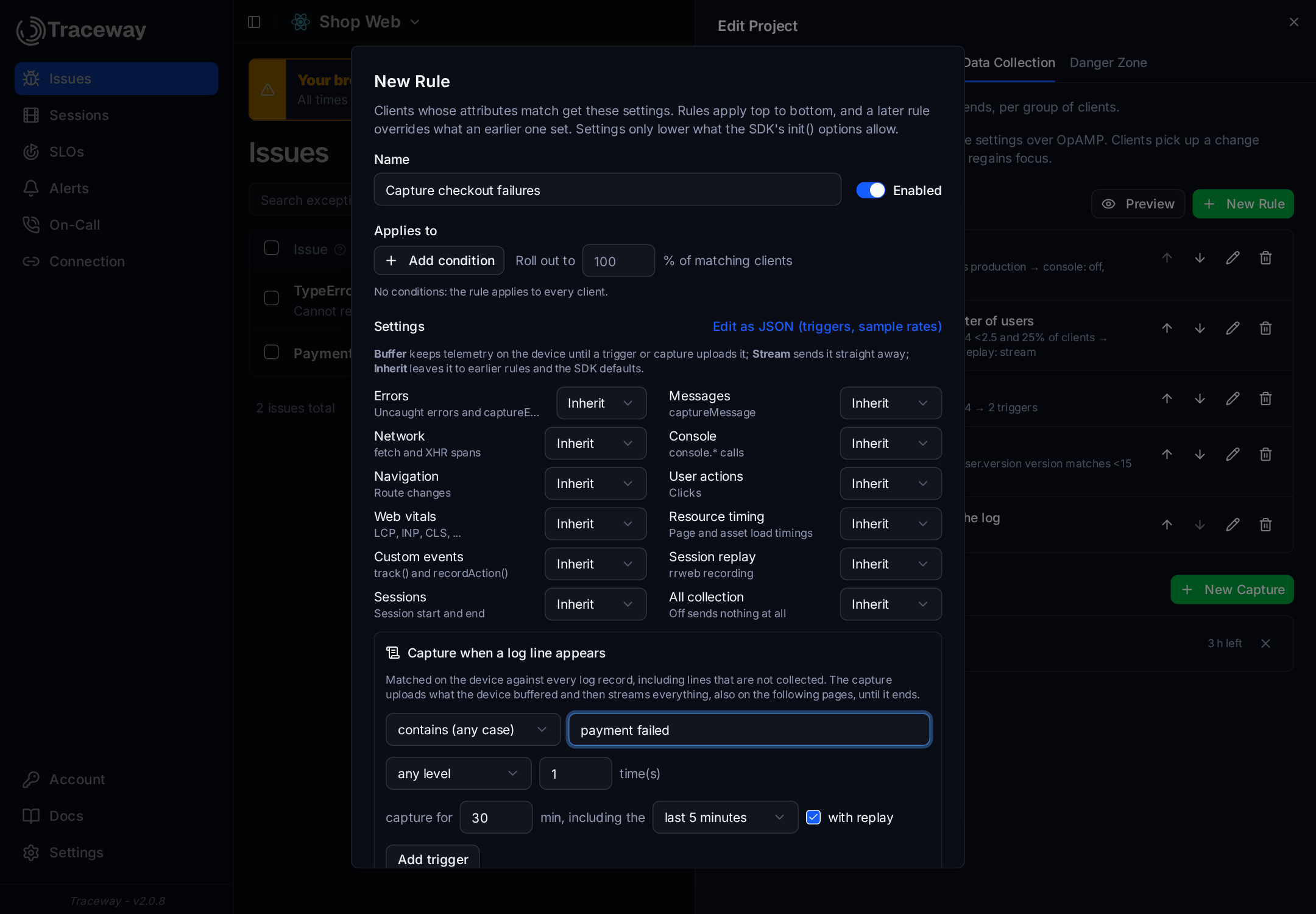
Add trigger switches the dialog to JSON and inserts the trigger, where you can adjust anything the form does not show:
{
  "schemaVersion": 1,
  "triggers": [
    {
      "id": "log-payment-failed",
      "name": "Capture when \"payment failed\" is logged",
      "steps": [
        {
          "match": { "all": [
            { "key": "signal", "op": "eq", "value": "console" },
            { "key": "body", "op": "icontains", "value": "payment failed" },
            { "key": "severity", "op": "gte", "value": 17 }
          ] },
          "count": 3,
          "periodSeconds": 60
        }
      ],
      "actions": [
        { "type": "capture", "durationSeconds": 1800, "lookbackSeconds": 300, "signals": ["*"], "replay": true }
      ]
    }
  ]
}
The capture brings back what other rules switched off. With the "Quiet console in production" rule above, console lines still stream for the 30 minutes after payment failed is logged, starting with that line.
To turn off the SDK's built-in error clip, add a trigger that only names it: { "id": "default-exception", "enabled": false }.
Check what a client will get
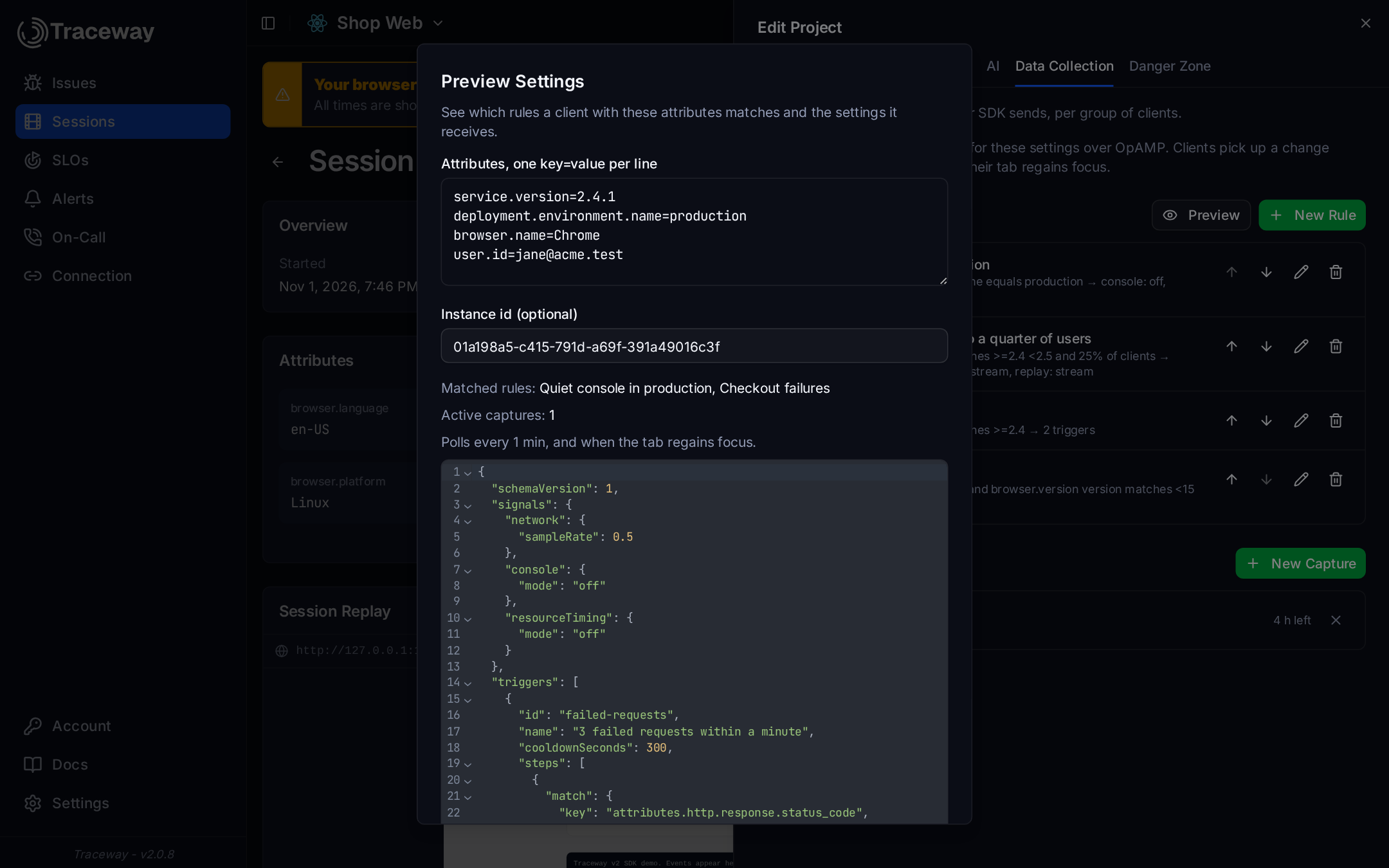
Preview shows the document a client would receive. Paste its attributes, one key=value per line, and optionally its instance id (from getInstanceId(), which decides its rollout bucket). It lists the rules and captures that matched and the exact settings document the client receives.
Capture a user or a device
When someone reports a problem, capture them:
- On a session page, Capture this device targets the browser that recorded the session, so it also covers that device's next visits.
- On an issue, the event card offers Capture device (or user, or session, whichever the event carries).
- In the Data Collection tab, New Capture targets a device, a user, a session or any attribute.
Pick a duration (up to 24 hours), a lookback (how much of what the device was holding to upload first), and whether to include replay.
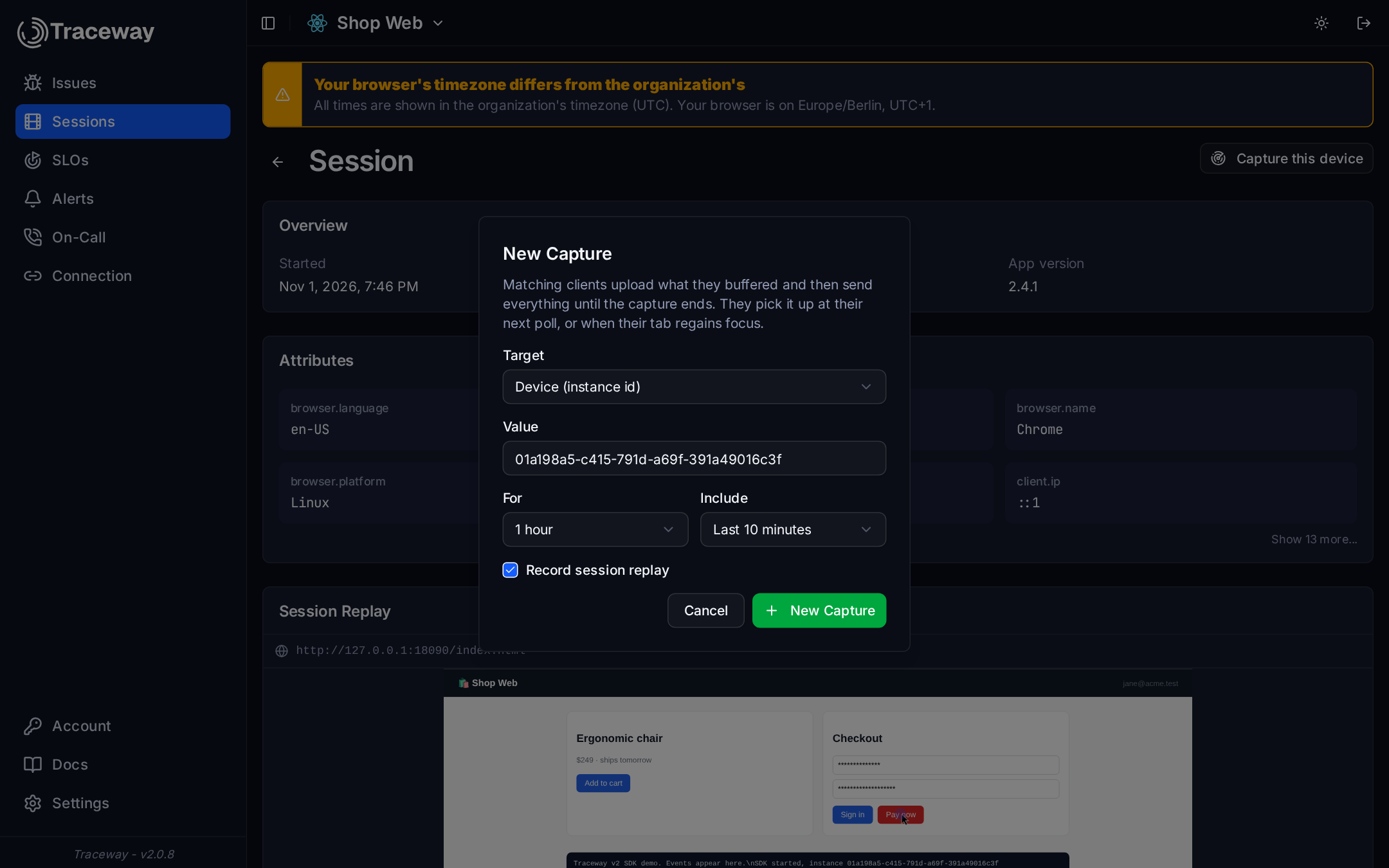
The capture reaches the browser at its next poll or when the tab becomes visible after the polling interval has elapsed. Cancel it from the active captures list. A connected client stops that capture at its next successful poll; an offline client keeps the last settings until their capture expiry. “Nothing earlier” selects zero lookback.
Verify it on a device
The SDK reports what it did as log events that always stream. In Logs, filter the project's logs by:
| Event | Means |
|---|---|
traceway.config.applied | A settings document was applied |
traceway.trigger.fired | A trigger fired (traceway.trigger.id) |
traceway.capture.started | A capture started on this device (traceway.capture.id; traceway.capture.source: trigger for a trigger's capture) |
In the browser, Traceway.getInstanceId() returns the device id to capture or preview, and debug: true in init() prints what the SDK does to the console.
Self-hosted operators
| What | Details |
|---|---|
OPAMP_POLL_INTERVAL_SECONDS | How often browsers poll, default 300, between 60 and 86400. Every open tab of every instrumented app polls, so this is a load setting. Clients under a capture poll every 60 seconds whatever it says |
OPAMP_MAX_CONCURRENT | Polls processed at once, default 4 × CPU cores (at least 8). Its own gate, so polls and ingest cannot starve each other; above it a poll answers 503 with Retry-After: 60 and the browser keeps its settings |
| Routes | POST /api/otel/v1/opamp and POST /api/recordings, both under /api, so existing proxy rules cover them |
| Load | One small protobuf request per open tab per interval. A poll reads its rules from an in-memory cache. A capture's progress (delivered, applied, data received) is written to the main database in the background, once per stage, so polls and ingest never wait on it |
| Several instances | On Postgres, saving a rule or a capture refreshes the cache on every instance; any instance can answer any browser |
| Content Security Policy | connect-src must allow the Traceway origin, as it already must for telemetry |
Troubleshooting
| Symptom | Check |
|---|---|
| A rule does not apply | Wait for the next poll, focus the tab, or call refreshConfig(). Use Preview with the client's attributes: a condition on user.id only matches after setAttribute("user.id", ...). Check that init() does not turn the signal off. A 403 on /api/otel/v1/opamp means the connection string carries the token of a backend or mobile project, and the SDK stops polling: use the browser project's token |
| A capture does not start | The target must match exactly what the browser reports: its instance id, user.id or session id. The capture starts at the next poll or tab focus |
| A trigger fires but little is uploaded | A flush uploads only what was buffered: a signal that is off has nothing to upload. The buffer keeps 10 minutes or 2 MB by default (buffer in the settings reference) |
| Nothing arrives at all | Look for a kill switch rule that matches the client, and for a plan without the data you expect. A 401 on the OpAMP endpoint stops polling: check the project token |
Check a session’s SDK version
Open a session and look for JavaScript SDK in its overview, separately from App version. V2 session logs report the exact SDK package version. Browser sessions received through legacy ingestion are labeled V1 · legacy ingestion. Historical sessions without version metadata show Unknown · not reported; missing metadata does not prove that a session used v1.
OpAMP rules and targeted captures require the JavaScript SDK v2. V1 clients continue ingesting normally but do not apply remote settings.