CLI Authentication
The traceway CLI logs in to your account on one Traceway instance and keeps that login on your machine. By default you approve the login in your browser. This page covers every way to log in, how to create a token for a job that has no browser, and what a self-hosted server needs for logins to work.
Pick the login that fits where the CLI runs:
| Where the CLI runs | Log in with |
|---|---|
| Your own machine | Your browser |
| A server you reach over SSH | Your browser, on another device |
| CI, a container or a script | A personal access token |
| A terminal where you would rather type your password | Your password |
The examples use Traceway Cloud. For a self-hosted instance, put your own URL after --url.
A traceway login is always read only. traceway-write has the same login command with the same flags, keeps its own login, and asks for read and write access. See Agent Write Access.
Log in with your browser
Run this in a terminal:
traceway login --url https://cloud.tracewayapp.comThe command prints a link and a short code, opens the link in your browser, and waits:
To sign in, open this URL in your browser:

    https://cloud.tracewayapp.com/device

And enter the code:  MF6H-T2S1

Waiting for authorization...
Sign in to the dashboard if you are not already, check that the code on the page matches the one in your terminal, and click Approve:
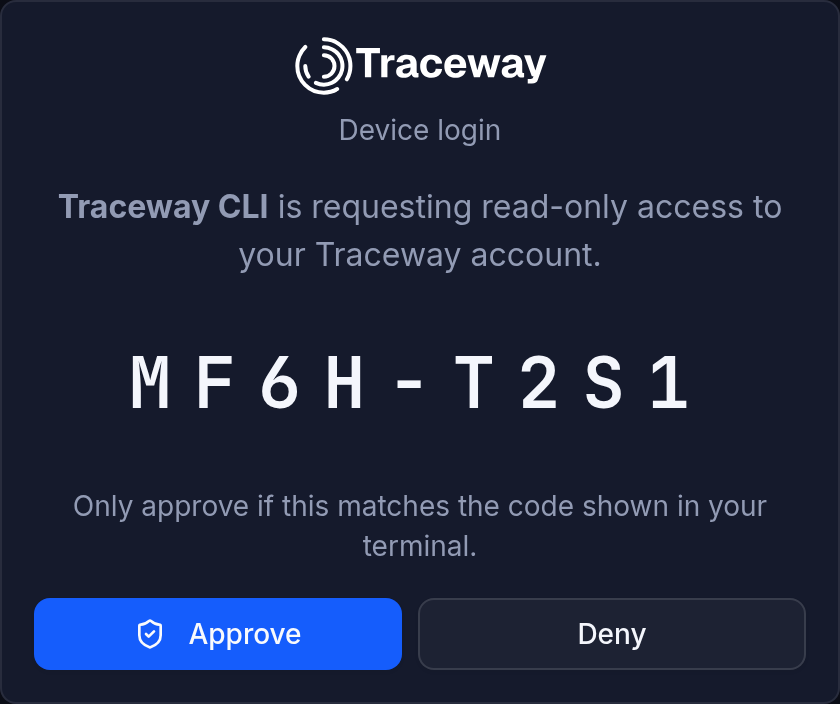
The terminal then confirms the login:
Logged in as maya@acme.dev on https://cloud.tracewayapp.com (profile: default)The code is valid for ten minutes. After the login you stay logged in for up to 90 days of inactivity, without typing anything again.
When you log in again later you can leave out --url: the CLI reuses the URL of the profile. On a first login without --url it uses https://cloud.tracewayapp.com.
On a machine without a browser
On a server you reach over SSH, add --no-browser:
traceway login --url https://cloud.tracewayapp.com --no-browserThe CLI prints the same link and code and does not try to open anything. Open the link on your laptop or phone, type the code from the terminal, and click Continue:
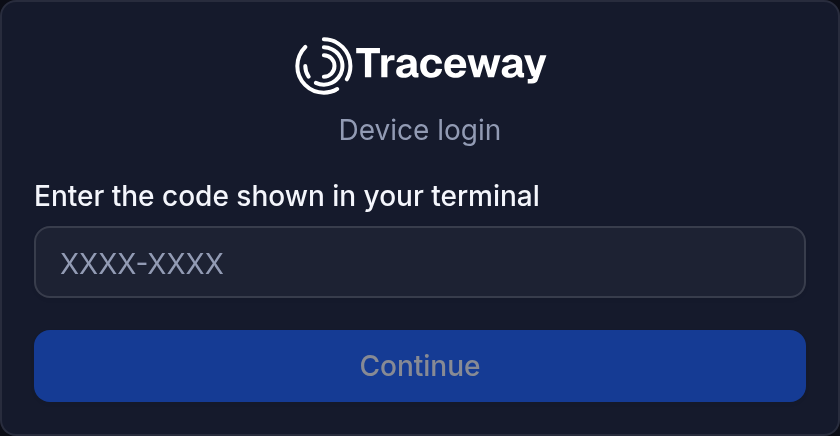
The page then shows the approval screen from above. Click Approve and the terminal on the server confirms the login.
Personal access tokens
A job that runs without a person at the keyboard logs in with a token. A token belongs to your account, sees the projects you see, and works until it expires or you revoke it.
Create a token
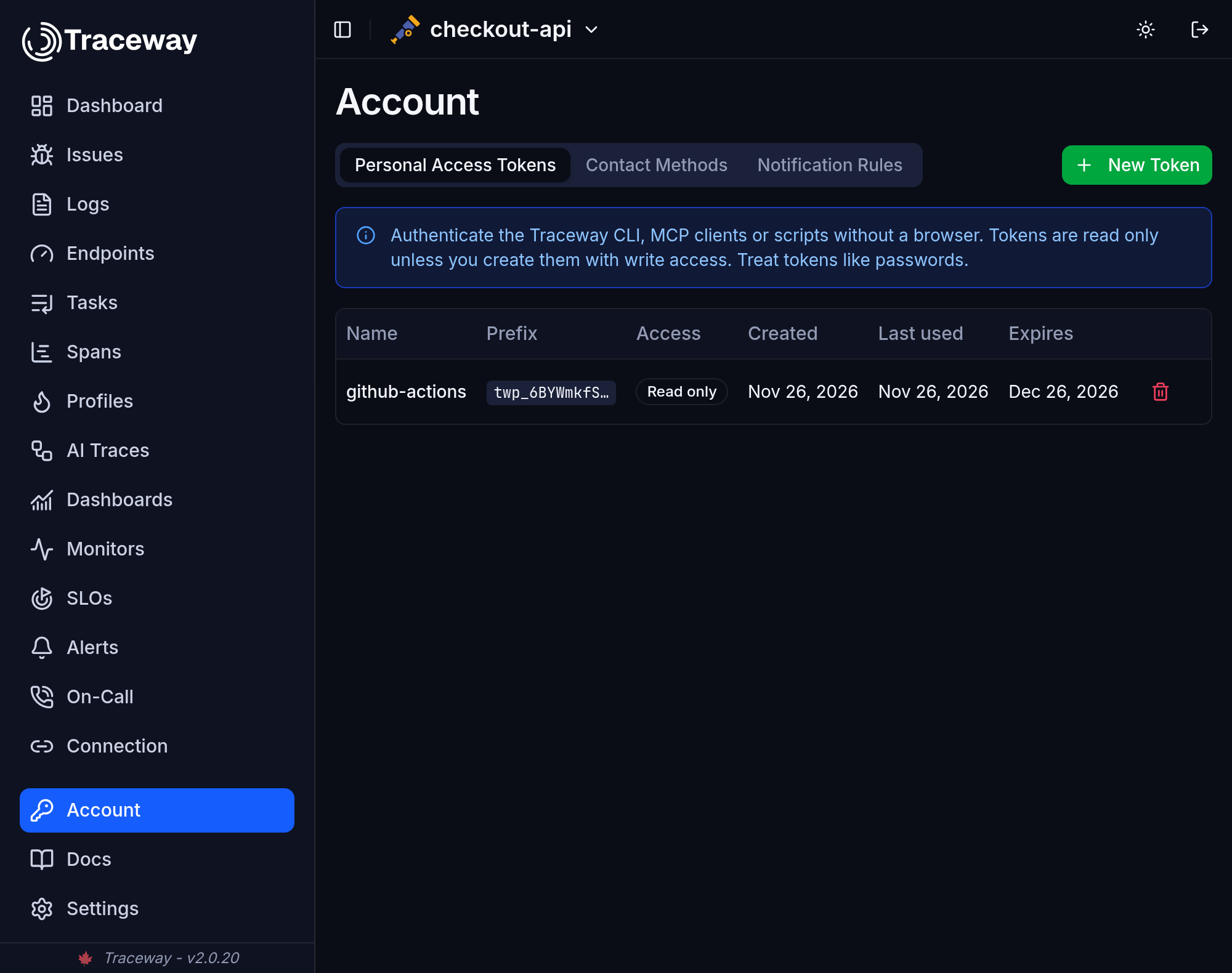
- Open Account at the bottom of the sidebar. It opens on the Personal Access Tokens tab.
- Click New Token.
- Give the token a Name that says where it will run, leave Access on Read only, and pick an Expiration: 7, 30, 60 or 90 days, or No expiration.
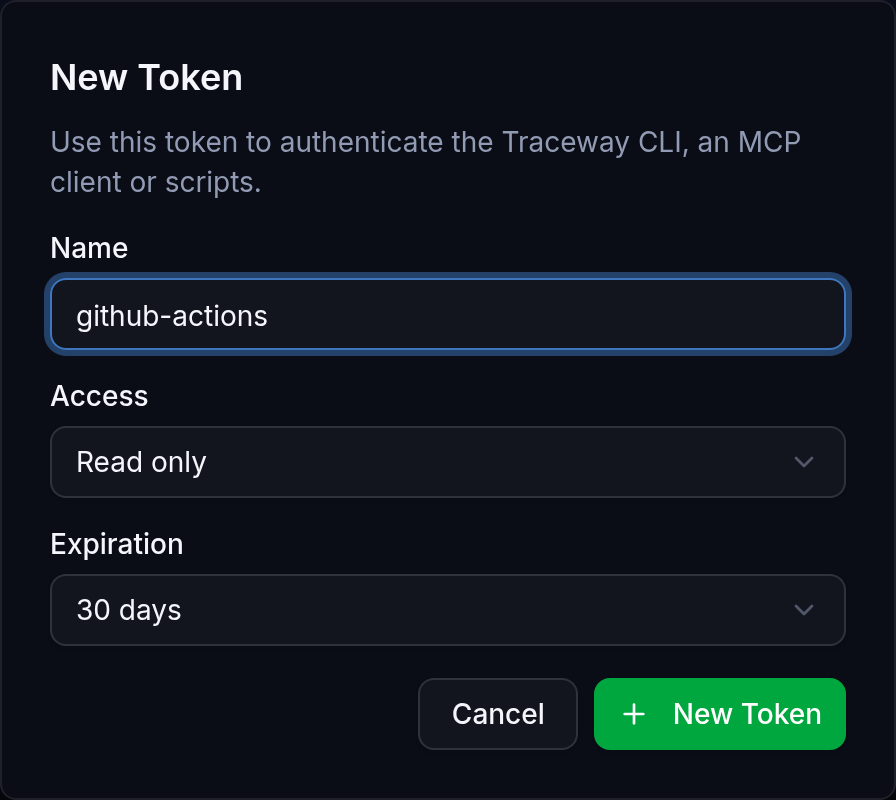
- Click New Token and copy the token. This is the only time it is shown, so put it in your CI's secret store right away.
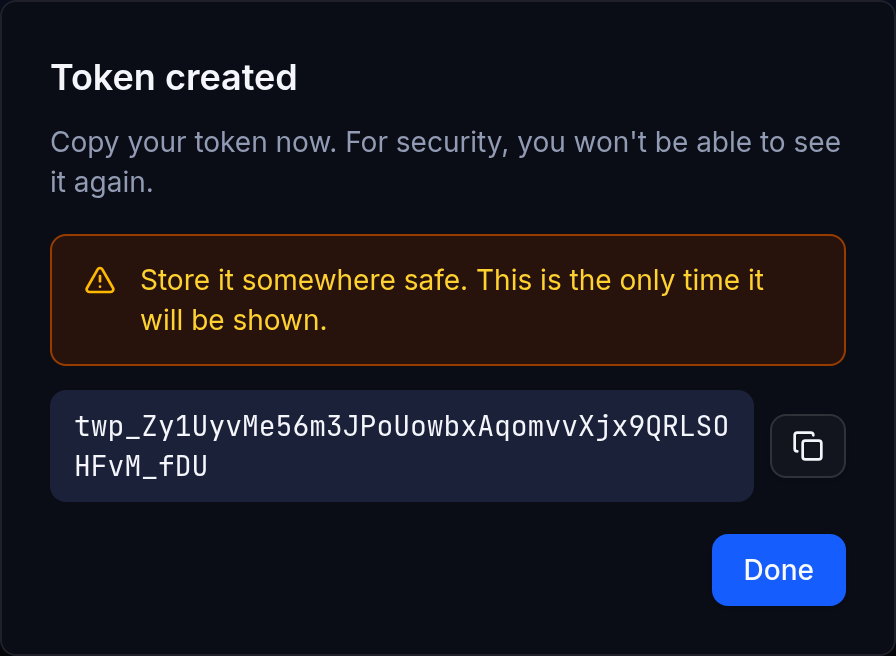
The token is now in the list, with the first characters of the token, its access, when it was last used and when it expires:
Log in with the token
Give the token to the CLI on stdin, so it does not end up in the shell history or in the process list:
printf '%s' "$TRACEWAY_TOKEN" | \
  traceway login --url https://cloud.tracewayapp.com --token-stdin
The CLI tries the token against the server first and stores it only when it works:
Stored personal access token for https://cloud.tracewayapp.com (profile: default)For a quick test on your own machine, traceway login --token twp_... takes the token as an argument instead.
A fresh job has no selected project, so name the project on each command:
traceway --project <project-id> exceptions list --since 24hScripts and CI has more on running the CLI in a job. An MCP client takes the same token as a header: see MCP Server.
Read-only and write tokens
A token has one of two access levels:
- Read only (
twp_, the default) reads telemetry, monitors, pages, alerts and post-mortems. It never changes anything. - Read and write (
tww_) can also make the changes listed in Agent Write Access, in organizations where an admin turned agent writes on. It must expire within 90 days. The read-onlytracewayCLI refuses to store it: use it withtraceway-write.
Whatever its access level, a token only reaches what the CLI and the MCP server use. Creating projects, managing the members or settings of an organization, revoking tokens and approving a login are refused, so a leaked token cannot be used to take over the account. A read-only token cannot create tokens either. A write token can create read-only tokens, never write tokens.
Revoke a token
In Account > Personal Access Tokens, click the bin icon in the token's row and confirm with Revoke Token. Every CLI and script that uses the token stops working at once.
traceway logout does not revoke a token. It only removes the token from that machine.
Log in with your password
To type your email and password in the terminal in place of the browser approval:
traceway login --url https://cloud.tracewayapp.com --passwordUsername: maya@acme.dev
Password:
Logged in as maya@acme.dev on https://cloud.tracewayapp.com (profile: default)Username is the email you sign in to the dashboard with. A profile that already has a login is not asked for it: the CLI reuses the stored username, and --username names another account. Two more flags skip the prompts:
# Name the account, be asked for the password only
traceway login --url https://cloud.tracewayapp.com \
  --username maya@acme.dev

# Read the password from stdin
printf '%s' "$TRACEWAY_PASSWORD" | \
  traceway login --url https://cloud.tracewayapp.com \
    --username maya@acme.dev --password-stdin
The CLI does not store the password. You get the same login as with the browser: read only, kept for up to 90 days of inactivity, and ended by traceway logout. It cannot be used as a dashboard session.
For a job, prefer a token. You can revoke a token without changing your password.
An older server that does not know access levels answers a password login with a 7-day session that is not renewed. Log in again when it runs out.
Check that it works
traceway profiles list NAME URL USERNAME
* default https://cloud.tracewayapp.com maya@acme.devThis shows which instance and account each login on this machine is for. The * marks the profile in use, and a token login has no username. Then ask the server for something:
traceway projects listID NAME ROLE
1e5b3c0f-0e8e-4652-b917-dfe3ce55ed11 checkout-api ownerA list of your projects means the server accepted the login. Next, pick a project.
To keep several logins side by side, for example Traceway Cloud and a self-hosted instance, give each login its own --profile. See Profiles.
Log out
traceway logoutLogged out of profile "default"For a browser or password login this ends the session on the server, so it cannot be renewed any more, and then removes the credentials from your machine. For a token login it only removes the token from your machine: revoke the token in the dashboard.
traceway --profile <name> logout logs out one of several profiles.
How a login works
The browser login is the OAuth device authorization grant (opens in a new tab). The CLI asks the server for a code, you approve that code in a browser where you are already signed in, and the CLI polls the server until it hands over the credentials. Your password never passes through the CLI.
What the CLI receives is a pair: an access token that is valid for 15 minutes, and a refresh token that is valid for 90 days. When the access token runs out, the CLI trades the refresh token for a new pair on its own. That is why a login lasts for 90 days of inactivity and not 90 days in total.
Each refresh token works once. If an old one shows up again later, the server takes it as a stolen copy and ends the whole session. So do not copy the CLI's stored login to a second machine: log in there instead.
A password login sends your email and password to the server once and gets the same pair back. A personal access token is different: it is one fixed string that the CLI sends with every request, with no renewal. The server keeps only a hash of it, which is why the dashboard cannot show a token a second time.
The CLI stores the URL and username of each profile in ~/.config/traceway/config.json and the credentials in ~/.local/state/traceway/state.json, which only your user can read. traceway-write keeps its own two files under traceway-write directories, so a read login and a write login never mix. More in Profiles.
On a self-hosted server
The login flows of the CLI and the MCP server work against any Traceway instance with no extra setup. Two server settings decide whether they are safe and where the login links point.
Set a strong JWT_SECRET
JWT_SECRET signs every dashboard session and every access token the CLI and MCP clients receive. Anyone who knows it can forge a token for any user. Use a strong, unique value, keep it out of source control, and never expose an instance that runs with a default.
Generate one and pass it as an environment variable:
openssl rand -hex 32 # use the output as JWT_SECRET- At least 32 characters. The server refuses to start with a shorter secret.
- Required by every server image, including All-in-One. Former built-in keys are rejected. Older All-in-One images overwrote the secret you passed through Docker: upgrade and recreate those containers with a unique key. See the All-in-One upgrade note.
- Keep it stable. Changing it logs everyone out of the dashboard. CLI logins and personal access tokens keep working, because they are stored in the database and not signed with the secret: a CLI gets an access token signed with the new secret on its next call.
OAUTH_SESSION_SECRET falls back to JWT_SECRET when it is unset. Set it only if you want to rotate the SSO cookie secret on its own.
Set APP_BASE_URL to your public origin
APP_BASE_URL is the address the server gives out: the link traceway login prints, the OAuth issuer, and the URLs in the discovery documents below. When it is unset, the server works the address out for each request from the Host and X-Forwarded-* headers, which is right when clients reach the server directly or through a proxy that passes those headers on.
Set it when the server sits behind a proxy that changes the Host header and does not send X-Forwarded-Host. Otherwise the printed link points at an address your users cannot open.
APP_BASE_URL=https://traceway.example.comTo check, ask the server what it tells clients. issuer must be the address your users type:
curl https://traceway.example.com/.well-known/oauth-authorization-server{
"issuer": "https://traceway.example.com",
"device_authorization_endpoint": "https://traceway.example.com/api/auth/device/authorize",
"token_endpoint": "https://traceway.example.com/api/auth/token",
"scopes_supported": ["traceway:read", "traceway:write"]
}The response has more fields than shown here.
Discovery endpoints
Clients that follow the OAuth specifications, the MCP server among them, configure themselves from two documents at the root of the instance, so you never enter an endpoint by hand:
GET /.well-known/oauth-authorization-server: RFC 8414 (opens in a new tab) authorization server metadata (issuer, token and device authorization endpoints, supported grants).GET /.well-known/oauth-protected-resource: RFC 9728 (opens in a new tab) protected resource metadata.
Both take their URLs from APP_BASE_URL, or from the request headers when it is unset. They need no configuration of their own.
When a login fails
| Message | Cause and fix |
|---|---|
the browser device-login flow requires an interactive terminal | traceway login ran where nobody can approve it, such as a CI job. Log in with a token, or add --no-browser on a remote machine. |
the login request expired before it was approved | More than ten minutes passed before you approved the code. Run traceway login again. |
the login request was denied | Someone clicked Deny on the approval page. Run traceway login again and approve it. |
| Code not found or Code expired on the login page | The code was mistyped, or it is older than ten minutes. Compare it with the terminal, or start a new login. |
invalid email or password | The password login was refused. Check the email and the password, or log in with your browser. |
session expired or invalid during login --token | The token is mistyped, expired or revoked. Create a new one in Account > Personal Access Tokens. |
this is a write token (tww_) | A write token was given to the read-only CLI. Use it with traceway-write, or create a Read only token. |
session expired or invalid on any other command | The login ended: 90 days without use, or a token that expired or was revoked. Run traceway login again. |
this server does not support the browser device-login flow | The server is too old for the browser login. Log in with --password, or upgrade the server. |
| The printed link opens an address you cannot reach | A self-hosted instance sits behind a proxy that changes the Host header. Set APP_BASE_URL. |
Every other CLI error and the exit codes are in CLI: When it fails.